Paypal Integration - Payment Provider
Last updated: December 10, 2025
If you'd like to use Paypal for payments within Superfiliate, there are several things to keep in mind:
You'll need to have a business PayPal account
Your PayPal business account needs to be verified
You'll need to successfully request access to PayPal's Payouts API
Prior to making payments, you'll need to have sufficient funds deposited in your PayPal account
Your Superfiliates must have a PayPal email on file in order to be paid. You can update this on their contact page, or they can update it themselves within their Portal
Note: We recommend requiring your Superfiliates provide their PayPal email on the Signup form to facilitate smooth payouts
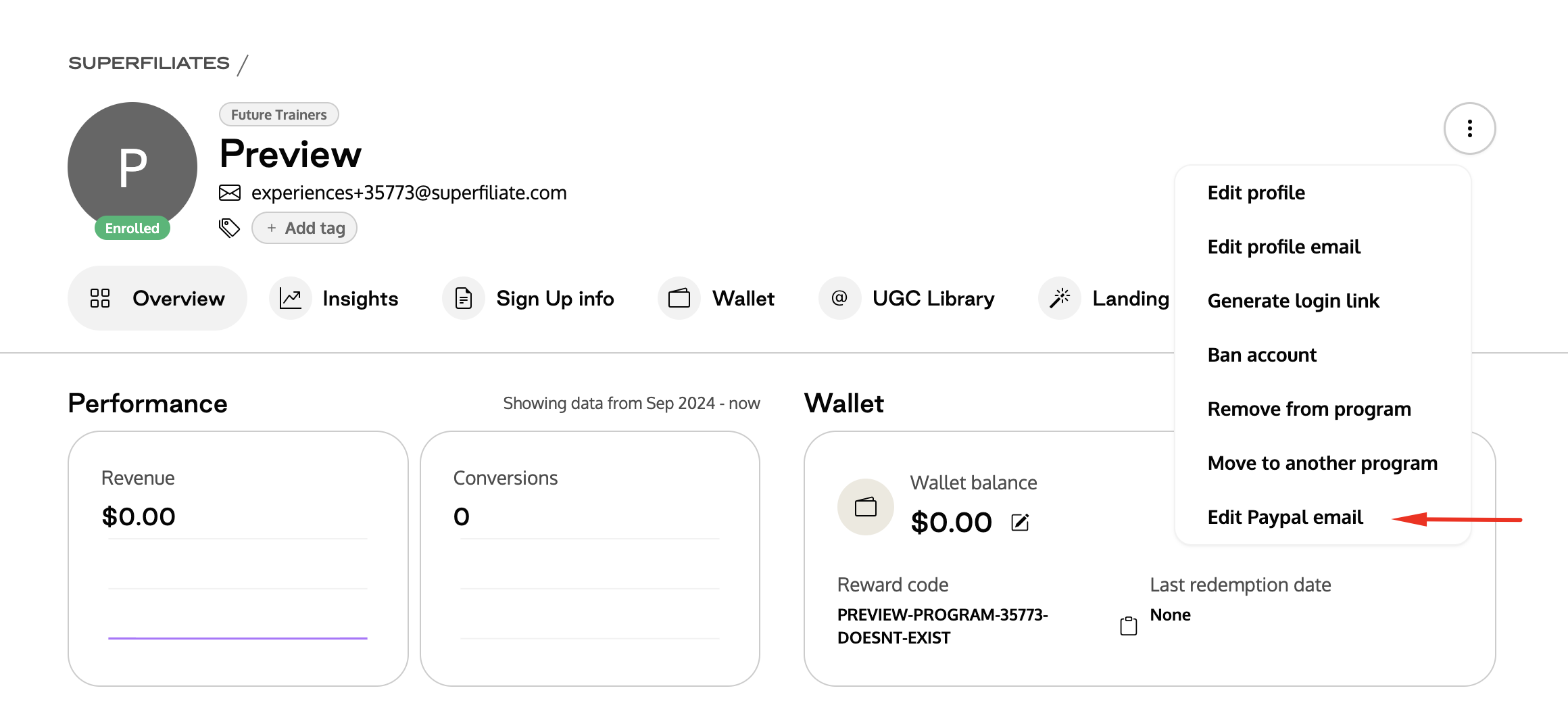
Paypal charges a flat fee of $0.25 per transaction
You can integrate Paypal in Superfiliate under Integrations>Payment
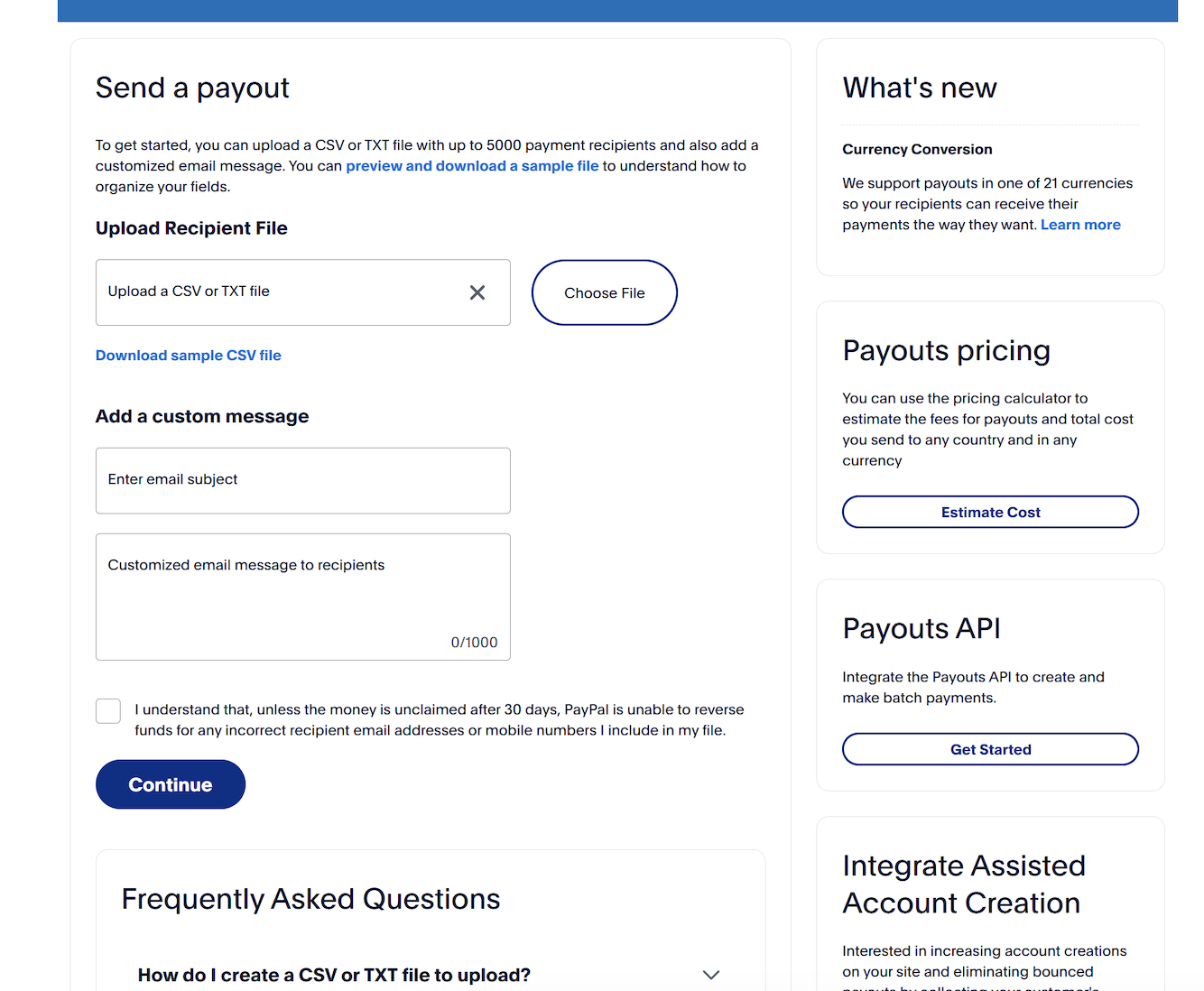
When the Payouts API has been configured successfully, you'll have the option to "Send a Payout" within your PayPal account - it should look similar to the below:
Tax Compliance
Paypal and Venmo are required by the IRS to send customers a Form-1099 if they meet the $600 per year threshold amount. You can find more information directly in this article
Paypal Fees
If you decide to use Paypal as your payment provider, here's the fees that you need to be aware of:
If you'll pay using Superfiliate, the fee will be 0.25 USD (flat fee)
If you'll pay using Paypal (outside Superfiliate), the fee will be 2%, not exceeding $20
If you pay internationally (also outside Superfiliate), the fee will be 2%, not exceeding $20 + international cross border
You have more info here about Paypal fees, if you're placing the payments using Paypal through Superfiliate the fee will be only $0.25 as we use the Payouts API to send the payments to Paypal
Sending Payments in Another Currency
PayPal allows you to send payments in different currencies. When sending a payment, you can choose the currency, and PayPal will display the applicable conversion rate before you confirm the transaction. If you're paying with a card, you may also have the option to use your card issuer’s conversion rate instead of PayPal’s.
For full step-by-step instructions and additional details, please check PayPal’s official documentation.