Inbox - How to Use the Email Inbox
Last updated: August 17, 2026
Overview
The Email Inbox is where you read, reply to, and compose email conversations with creators — all without leaving Superfiliate. Your inbox displays threads from your connected Gmail accounts, organized with filters so you can quickly find conversations by status, program, or type.
Use this feature when you want to:
Read and reply to emails from creators
Compose new one-on-one emails to superfiliates
Filter conversations by status, program, SuperBrief, or gifting context
Mark threads as read or unread
Use shared team inboxes to collaborate on responses
In this article, you will learn:
How the inbox layout works (sidebar, thread list, thread detail)
How to filter and search your inbox, including by label
How to reply to a thread (Reply and Reply All)
How to compose a new email
How to mark threads as unread
Requirements
Make sure that:
At least one Gmail or Outlook account is connected (see How to Connect and Manage Email Accounts)
You have access to the connected inbox
Important limitations
Reply formatting may vary. Emails are composed using a rich text editor; however, HTML rendering can differ across email providers (Gmail, Outlook, Yahoo, etc.).
Shared account sending. When you reply from a shared inbox, the email is sent from that account's email address, not yours. A "Send as" indicator is displayed so you know which address the recipient will see.
Labels are read-only. Provider labels are imported for viewing/filtering; you cannot create or edit them inside Superfiliate.
Step-by-step
1. Understanding the inbox layout
The inbox has three main sections:
Sidebar (left): Lists your connected accounts.
Users see two sections: My inboxes (accounts you connected) and Shared (accounts shared by teammates).
Click any account to view its threads.
Thread list (center): Shows email threads for the selected account, sorted with the most recent at the top. Each thread displays the subject, participants, a preview snippet, and the timestamp.
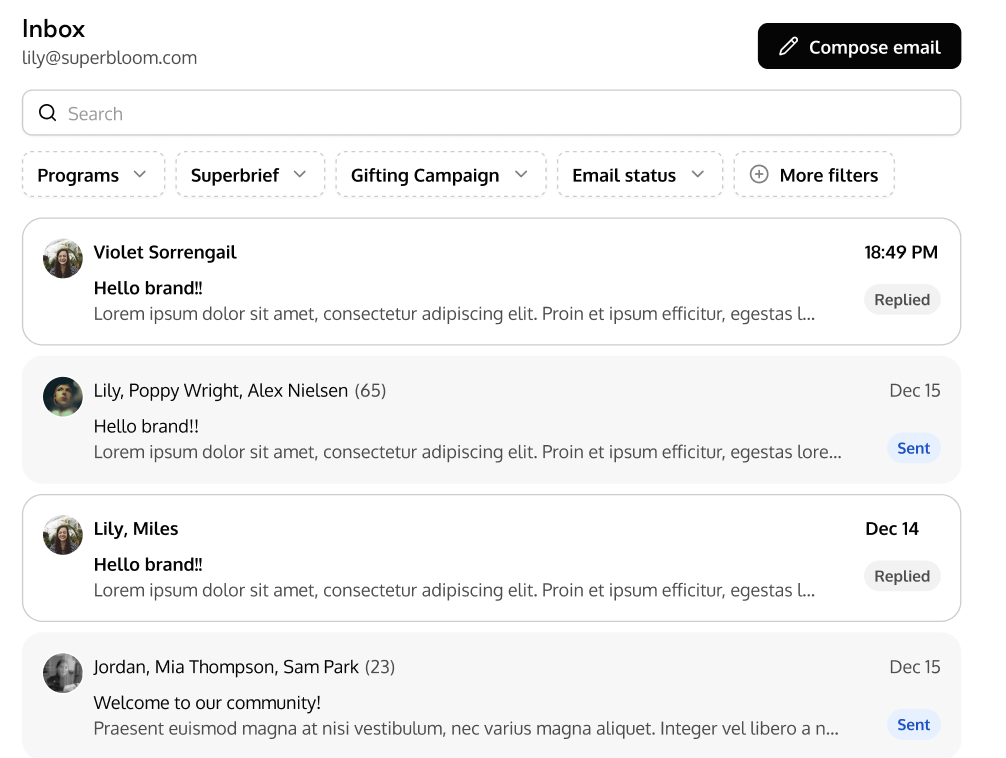
Thread detail (right / full view): Click a thread to open the full conversation with all messages, sender information, timestamps, and attachments.
2. Filtering and searching your inbox
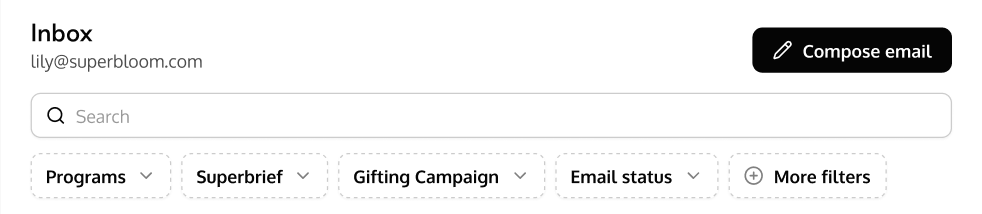
The toolbar at the top of the thread list provides several filters:
All emails — View all threads, or filter by email type.
Programs — Show only threads associated with a specific program.
SuperBrief — Show only threads related to SuperBrief activity.
Gifting — Show only threads related to gifting campaigns.
Status — Filter threads by status (e.g., read, unread).
More filters — Access additional filter options.
Click a label in the sidebar Labels section to show only threads carrying that label; click it again to clear the filter.
You can also use the search bar to search threads by keyword across subjects and message content.
3. Replying to a thread
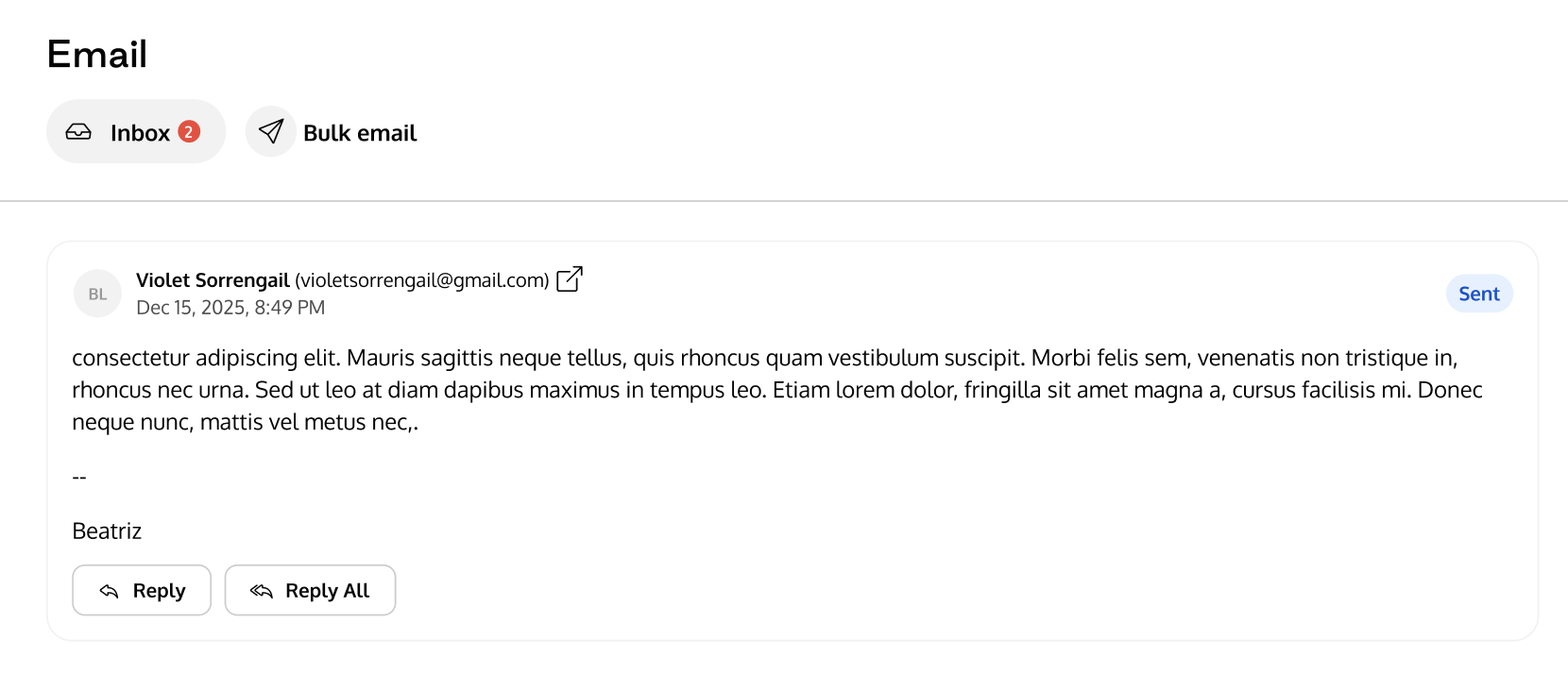
Open a thread by clicking on it in the thread list.
At the bottom of the conversation, click Reply or Reply All.
Reply sends to the original sender only.
Reply All sends to all participants. CC recipients from the original message are pre-filled.
The reply composer shows:
From: The email address you're replying from.
To: The recipient(s).
CC / BCC: Click the CC or BCC buttons to add additional recipients.
Write your message using the rich text editor. You can:
Format text (bold, italic, lists, links)
Insert images
Attach files
Click Send when ready, or Discard to cancel.
4. Composing a new email
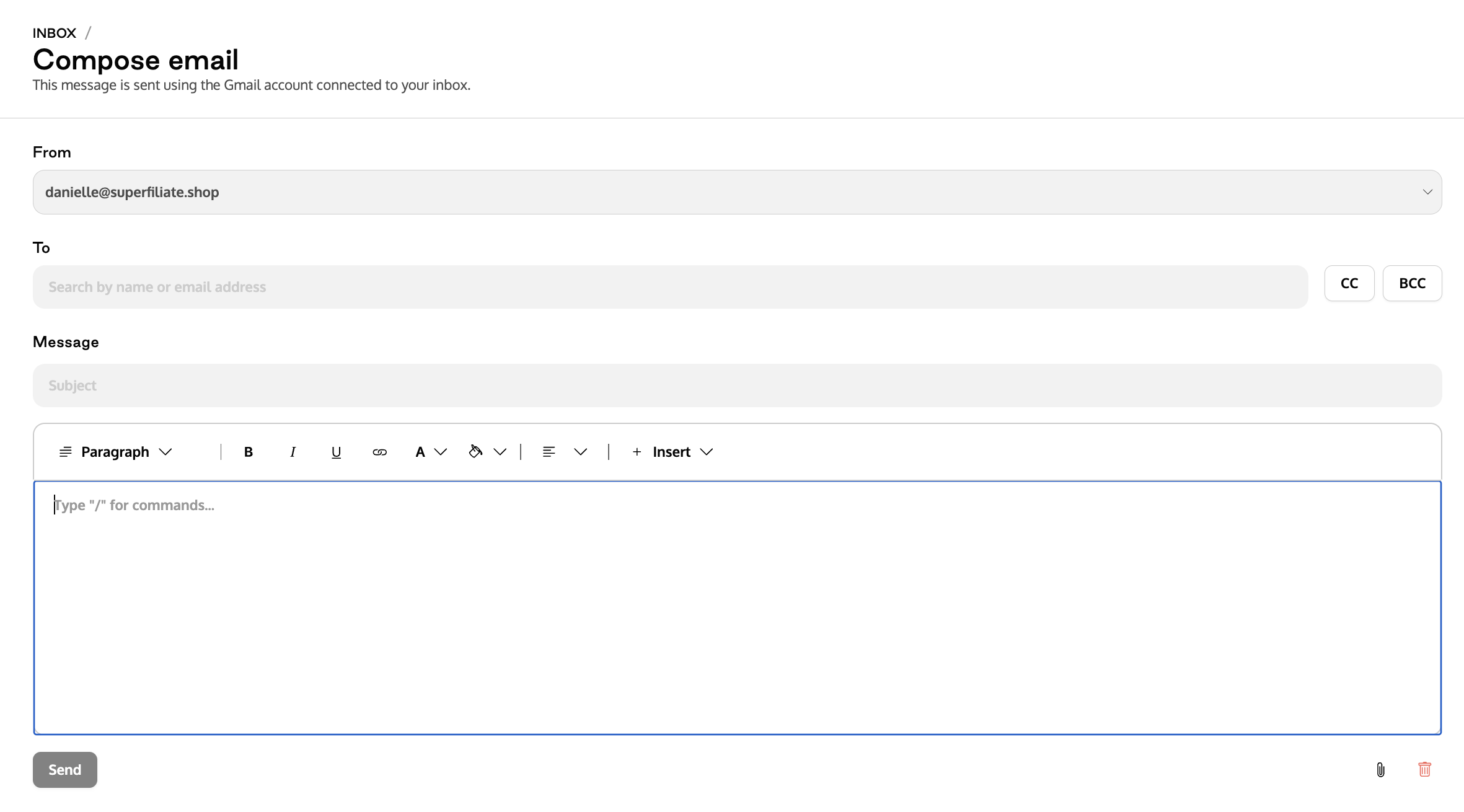
From the inbox, click the Compose button.
Select which connected account to send from using the From dropdown.
In the To field, search for recipients by name or email address. Superfiliate will suggest contacts from your superfiliates.
Optionally add CC and BCC recipients.
Enter a Subject line.
Compose your message in the rich text editor.
Attach files if needed.
Click Send.
After sending, you will be redirected back to the inbox. The sent email will appear as a thread.
5. Marking a thread as unread
Open a thread.
Click the Mark as unread button in the thread header (top right).
The thread will return to an unread state in the thread list.
6. Using shared inboxes
If a teammate has shared their inbox with the team:
The shared account appears under the Shared section in the sidebar.
Click it to view threads for that account.
You can reply to threads and compose new emails from the shared account.
A "Send as" indicator shows the email address your message will be sent from, so there is no confusion about sender identity.
Frequently Asked Questions (FAQ)
Q1. Why do I see "No Superfiliate emails yet" even though my account is connected?
A. If your sync scope for this inbox is set to "Contacts only", the inbox only displays threads related to Superfiliate activity. If no Superfiliate-related emails exist in the past 2 weeks, the inbox will be empty. New threads will appear as conversations happen.
Q2. Can I reply from a different email address than the one on the thread?
A. Replies are sent from the account associated with the thread. To send from a different address, compose a new email and select the desired account.
Q3. What file types and sizes can I attach?
A. You can attach any file type up to 20 MB.
Q4. Can I see if a teammate has already replied to a shared inbox thread?
A. Yes. All messages in a shared thread are visible to everyone with access, including replies sent by teammates.
Q5. What does the "Send as" indicator mean?
A. When you're sending from a shared account that belongs to someone else, the "Send as" indicator shows the actual email address the recipient will see. This ensures transparency when multiple team members use the same inbox.