How to Receive and Manage Creator Applications in a SuperBrief
Last updated: April 23, 2026
This action allows you to generate a shareable application link for a SuperBrief, collect submissions from creators, and approve or deny them before they are added to your campaign.
Step 1: Enable Open Applications When Creating or Editing a Brief
1. Go to the correct page
Go to Campaigns > SuperBriefs.
2. Begin the action
Click Create Brief — or open an existing brief and click Edit.
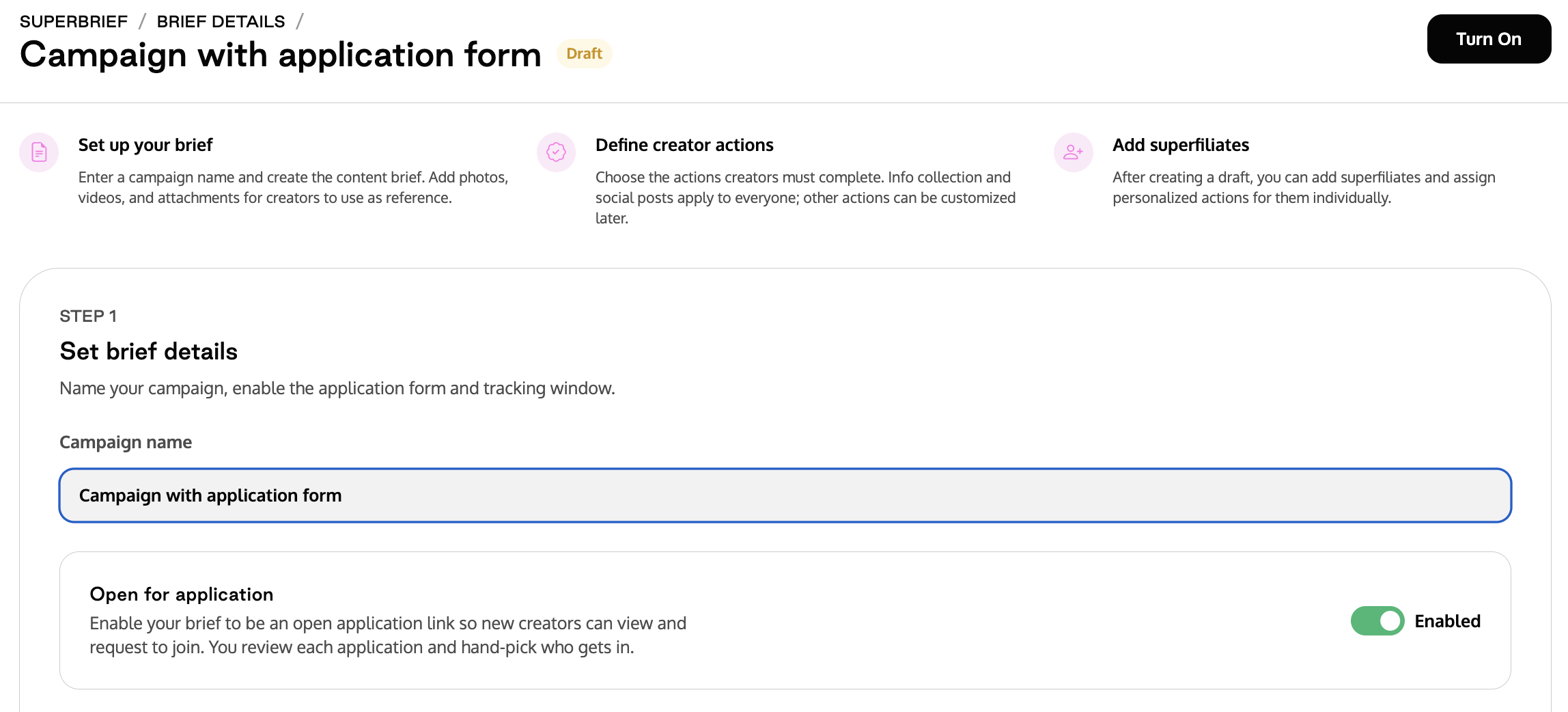
3. Enable the open application option
In the brief setup flow, locate the Open for Applications toggle and enable it.
A side panel will appear with the Application Form configuration.
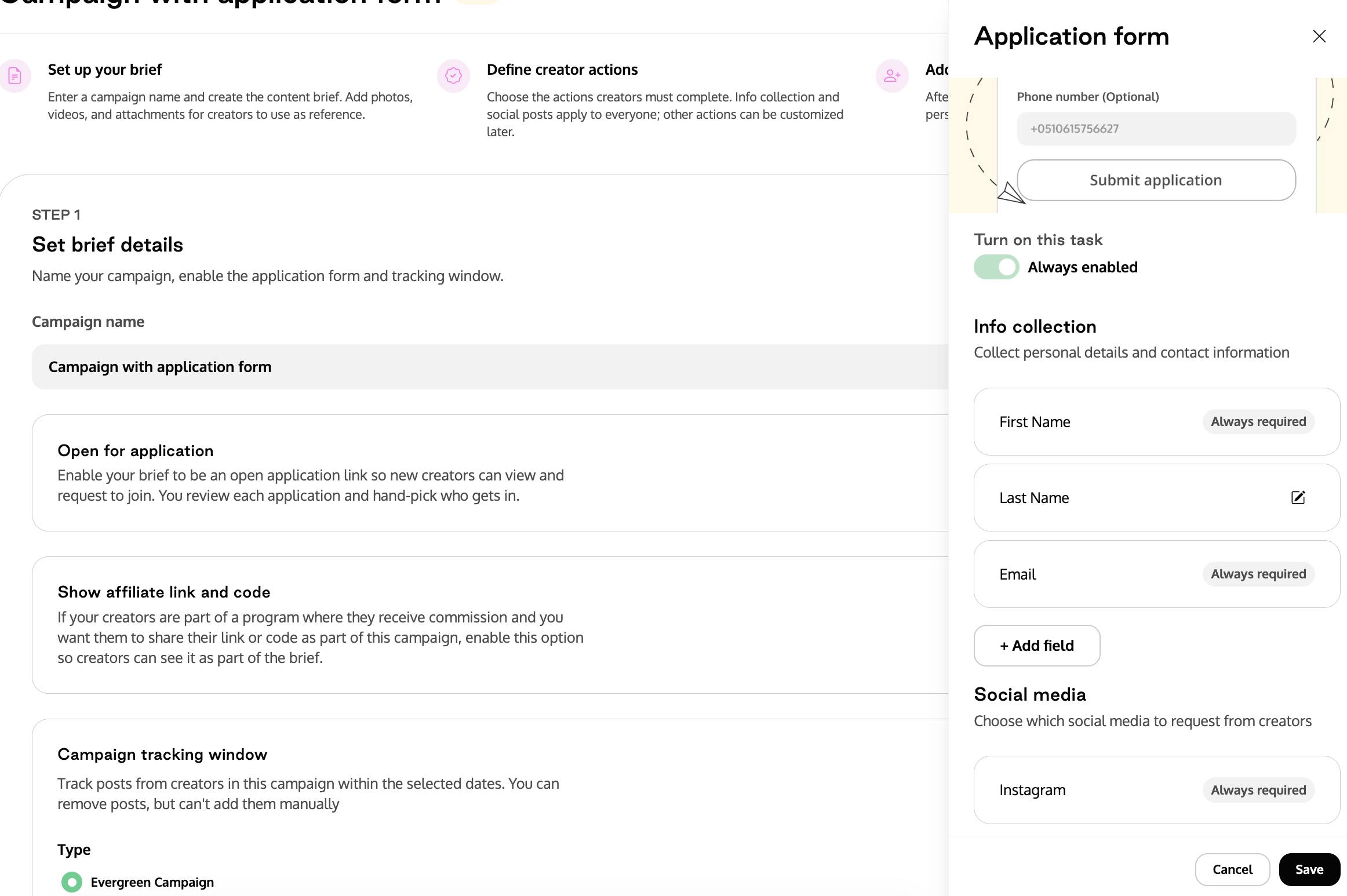
4. Configure the application questions
The following fields are always required and cannot be removed:
First Name
Email
Instagram handle
Optionally, add custom questions using any of the available field types:
Address
Phone number
Other social media handles (TikTok, YouTube)
Custom/open-ended questions
Click Save to confirm your question setup.
5. Add Campaign Terms (optional)
If you want creators to accept terms before submitting, enable Campaign Terms task.
Either type your terms directly or upload a document.
Add the pre-written checkbox text that creators will need to accept at submission.
When Campaign Terms is enabled alongside Open Applications, accepting the terms becomes a required step in the application form.
6. Save or activate the brief
Click Save as Draft or Activate to proceed.
Step 2: Share the Application Link
1. Go to the correct page
Open the brief and navigate to the Details tab.
2. Copy and share the link
Locate the Application Link field.
Copy the link and share it with your target creators.
The application page will automatically reflect your brand's global Brand Assets — including colors, typography, and other visual settings.
Step 3: Review and Manage Applications
1. Go to the correct page
Go to Campaigns > SuperBriefs and open the brief's home page.
Click the Application Requests tab.
2. Review incoming applications
All submitted applications will be listed here.
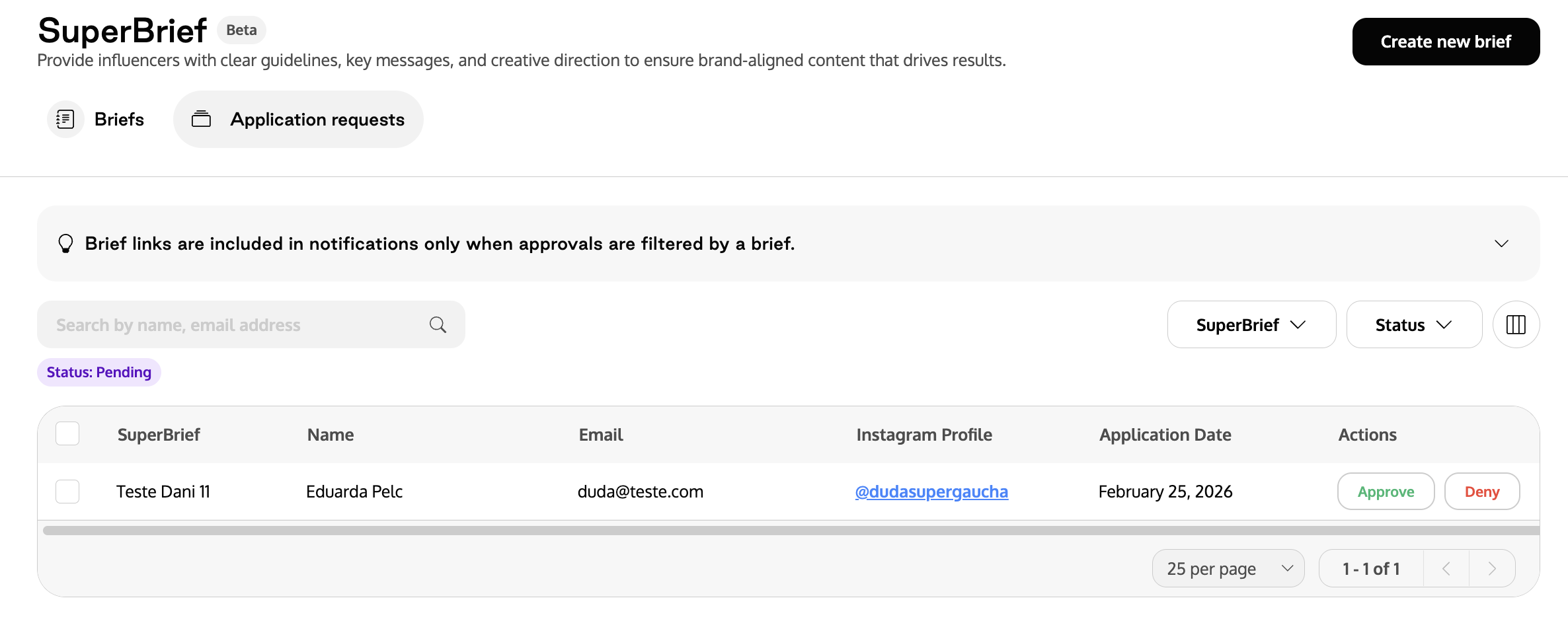
Use the available filters to sort by SuperBrief or by Status (Pending, Approved, Denied).
3. View a creator's responses
Click on any creator in the applications table to open a side panel with their full form responses.
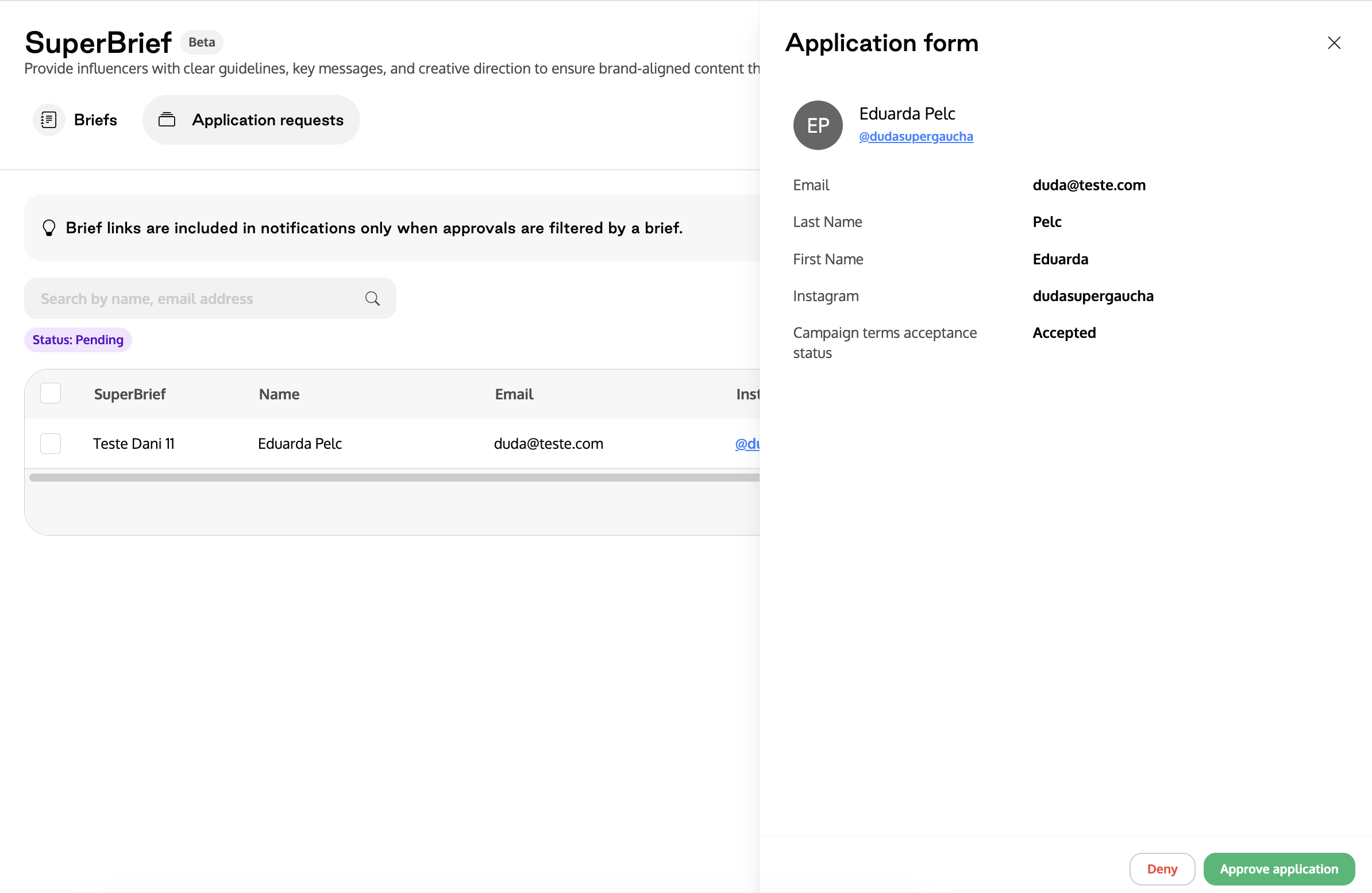
Review their answers to decide whether to approve or deny the application.
4. Approve or deny the application
Click Approve or Deny directly from the table or the side panel.
Once approved, the creator is automatically added to the SuperBrief and the standard brief workflow continues from that point.