Manage Products Within Superfiliate
Last updated: February 5, 2025
Via our Shopify API we're able to pull all of your product descriptions, images, variants and pricing without any need for you to add manually.
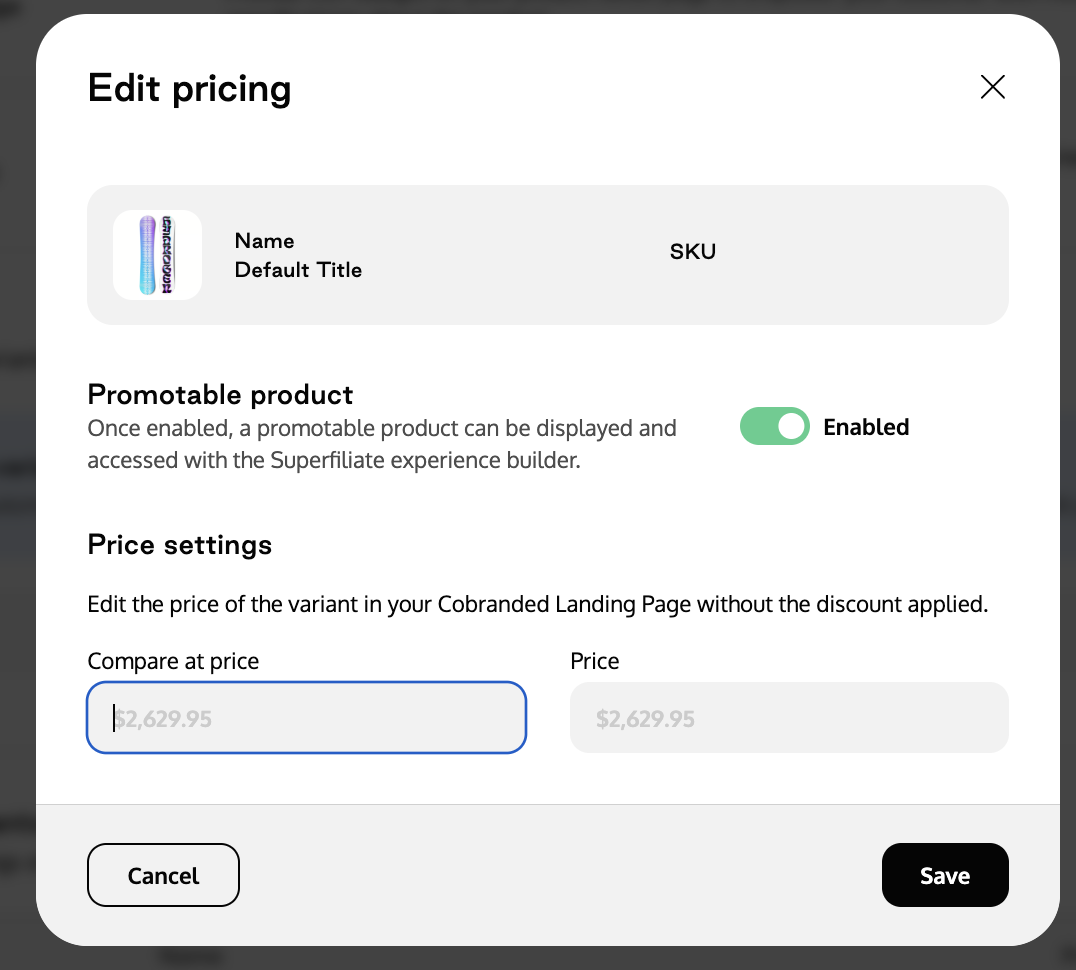
However, we do have a product tab that allows you to customize product information on the landing pages, add badges, edit the pricing modal, set them as promotable etc.
Here's a video showing how the products section works
Note: If you decide to edit any product information in Superfiliate, it will NOT reflect in your Shopify store and will only change in the Co-Branded Landing Pages of your programs
By default, all individual products within your Shopify account will be available for you to choose from within the various sections of Superfiliate.
You can search by name or SKU to find the items you want to promote, and then add it to the appropriate experience.
You can find more info here on how to create custom products within Superfiliate to represent bundles and more complex items.
Note: Items that are out of stock, archived, marked inactive or missing a valid sales channel are automatically flipped to “not promoted”. You can check an item’s status in the Products section of Superfiliate and force a product sync if you recently added or updated items in your Shopify and it hasn’t yet updated in Superfiliate (automatic syncs run every ~6 hours)
In order to promote an item, it must have at least one promotable variant. To promote a variant hit the "..." next to the variant, select "Edit Pricing" and toggle the slider to Enabled.