Notifications & The Activity Center
Last updated: September 23, 2026
The Activity Center lists everything in your Superfiliate account that requires your action, such as applications to review, payouts to process, integration issues, and out-of-stock products.
You can also get a regular summary of some of these items by email or Slack, so you don't have to open the app to know what's waiting.
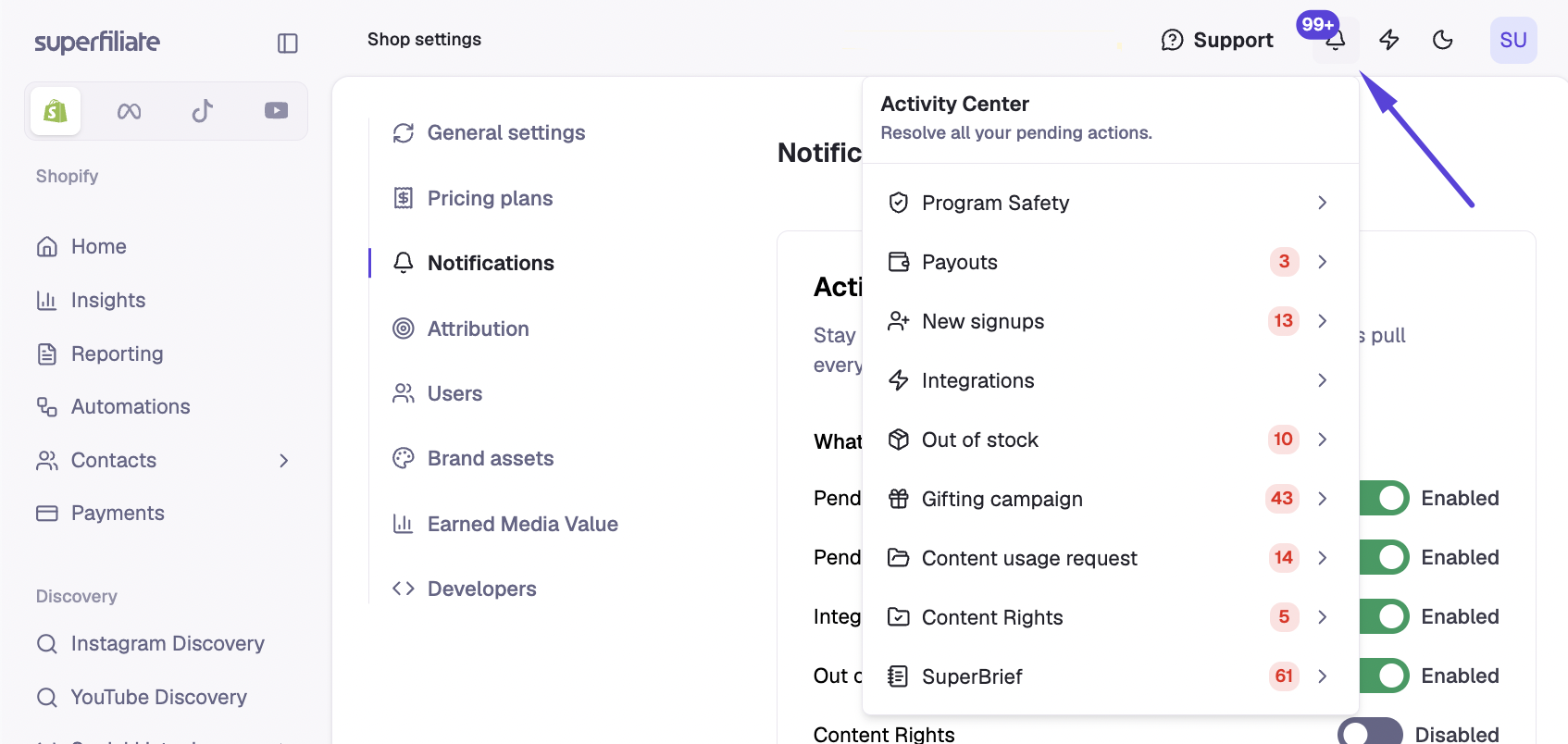
Open the Activity Center from the bell menu; it shows a badge with the total number of pending actions across all categories.
What the Activity Center shows
The Activity Center groups pending actions into these categories:
Pending Superfiliates (New Signups): applications from a Signup Page that you need to approve or deny
Payouts: payouts waiting to be processed
Integrations: integration problems that may disrupt your workflow
Out of Stock Products: products that are out of stock
Program Safety
Gifting campaign
Content Rights
SuperBrief
Content usage request: creator responses to your content usage requests
Content usage request
This category shows how creators responded to your requests to use their content:
Approved: the content is ready to use in ads.
Declined: you can resend the request.
Note: Content usage request only appears if your account uses the current content request workflow.
Scheduled summaries vs. in-app categories
Not every Activity Center category can be sent to you by email or Slack. Some appear only inside the app.
Category | In the Activity Center | Scheduled email/Slack summary |
|---|---|---|
Pending Superfiliates | Yes | Yes |
Payouts | Yes | Yes |
Integrations | Yes | Yes |
Out of Stock Products | Yes | Yes |
Content Rights | Yes | Yes |
SuperBrief | Yes | Yes |
Program Safety | Yes | No, in-app only |
Gifting campaign | Yes | No, in-app only |
Content usage request | Yes | No, in-app only |
For the in-app-only categories, check the Activity Center or the bell badge regularly.
Important: Social Listening mentions do not trigger real-time Slack alerts. Check them directly in Superfiliate.
Set up scheduled summaries
1. Open your notification settings
Go to Settings > Notifications.
2. Choose which updates to receive
Select the categories you want in your summary: Pending Superfiliates, Pending Payouts, Integrations (Instagram and TikTok only), Out of Stock Products, Content Rights, SuperBrief.
3. Choose where summaries are sent
Email is always available.
Slack only appears after your brand's Slack Connect channel is set up. If you don't see Slack as an option, the channel hasn't been set up yet. You can still use email in the meantime.
4. Choose how often you receive them
Pick a frequency: Daily, Once a Week, Every Two Weeks, Every Three Weeks or Monthly.
Tips for choosing your updates
Tip: If you recruit heavily from Instagram or use Superfiliate's TikTok Shop features, turn on Integrations updates. You'll learn about connection problems before they disrupt your workflow.
If you have a regular schedule for reviewing applicants and processing payouts, you don't need a summary for every new pending Superfiliate or payout. Just stick to your schedule, whether monthly or every two weeks, so nothing piles up.
Performance summaries
Performance summaries are a separate notification group from the Activity Center updates above.
Performance summaries give you a short snapshot of your program's high-level performance.
Each summary compares the current period with the previous period of the same length. For example, if you choose weekly, you get a week-over-week comparison.
You can turn performance summaries on or off in Settings > Notifications.