How to Set Up Manual Fulfillment for Gifting Campaigns
Last updated: October 27, 2026
Manual fulfillment allows you to run gifting campaigns in Superfiliate while managing order creation and shipping through your own systems.
With this option, creators can select their gifts and submit their shipping information directly through Superfiliate. Your team then handles fulfillment using your existing order management system, warehouse, or fulfillment partner.
This is especially useful for non-Shopify brands or Shopify brands that prefer to manage gifting orders outside Superfiliate's automated fulfillment process.
How Manual Fulfillment Works
The process is simple:
Create a gifting campaign in Superfiliate and select the products you'd like to offer.
Invite creators by sharing their gifting links.
Collect gift requests: Creators select their products and submit their shipping details through the Superfiliate gifting page.
Fulfill orders: Your team creates and ships the orders through your own fulfillment system.
Update shipment status: Record shipping and tracking information in Superfiliate manually, through CSV, or using the API.
Important: When a creator submits a gift request, Superfiliate collects the information needed for fulfillment. It does not automatically create an order or ship the gift.
Before You Get Started
Make sure you have:
Access to the Gifting section in Superfiliate.
Products and variants available in your Superfiliate catalog, if you plan to offer product selection.
An established process for creating orders and shipping gifts through your own system or fulfillment partner.
For non-Shopify brands: Your technical team can import products and variants into Superfiliate using our Product Catalog API.
Importing your catalog makes products available for selection, but you'll still need to choose which products to include in each gifting campaign.
Tip: If you only need to collect creators' shipping addresses, you can create a gifting campaign without selecting any products.
Step 1: Create a Manual Fulfillment Campaign
In Superfiliate, navigate to Gifting → New Campaign.
Enter a name for your campaign.
Configure your fulfillment method based on your store setup:
Non-Shopify stores using Custom OMS: Manual fulfillment is automatically enabled. No additional order creation settings are required.
Shopify stores: Select Creator chooses via Gifting Page, then choose Manual under Order creation.
Add a welcome message and any instructions you'd like creators to see when accessing their gifting page.
Set your campaign's tracking window and configure any additional settings.
[Insert screenshot: Campaign setup showing Manual under Order creation]
If manual fulfillment isn't available for your store, reach out to your Customer Success Manager for assistance.
For more information, see How to Create a Gifting Campaign.
Step 2: Select Products and Set Availability
Next, choose which products creators can receive.
In the Products step, click Select products.
Select the products and variants you'd like to offer.
Use Items each creator can choose to define how many items each creator can select.
Configure availability for each variant:
Unlimited: No quantity limit within the campaign.
Limited: Set the maximum quantity available across the campaign.
Note: Product availability limits apply to the gifting campaign and are separate from the number of items each creator can select. Your own fulfillment system remains responsible for managing actual inventory.
Allow Creators to Edit Their Gift Requests
You can also enable Allow creators to edit submitted gifts.
When enabled, creators can update their product selections or shipping details until fulfillment begins.
If you're fulfilling orders using a previously downloaded export, we recommend checking the latest gift submission before processing the order.
Step 3: Add Creators to Your Campaign
Once your campaign is configured:
Select the creators you'd like to include.
Review your campaign settings and product selections.
Create the campaign.
Share the gifting links with your creators through your preferred communication channel.
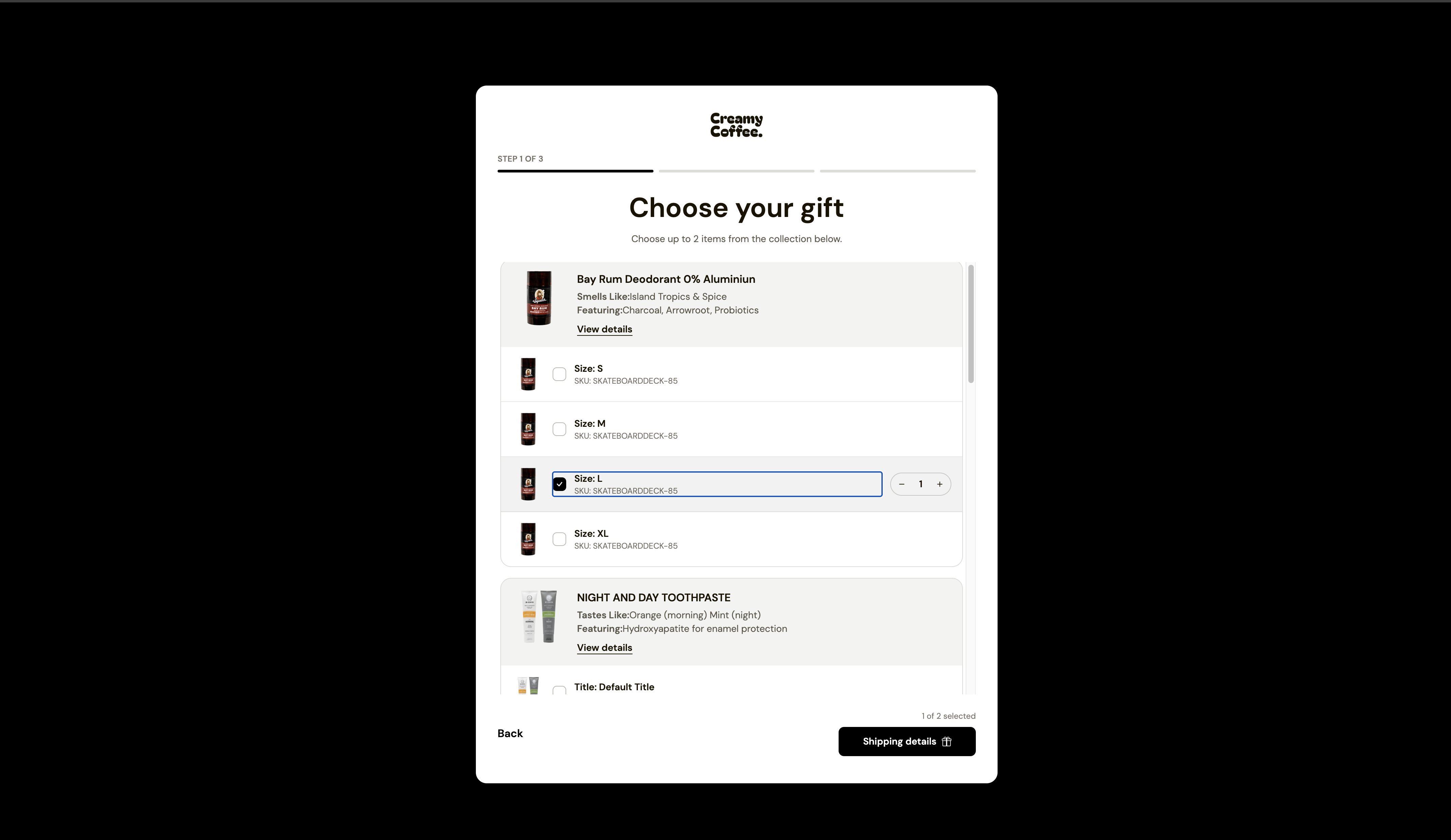
What Creators Will See
When creators open their gifting links or access the campaign through their creator portal, they'll be able to:
Select from the available products, if applicable.
Enter their shipping information.
Submit their gift request.
For address-only campaigns, creators only need to provide their delivery details.
Once a request is submitted, its status changes to Ready to send in Superfiliate.
Unlike Shopify-based automated gifting, creators will not be redirected to a Shopify checkout page.
Step 4: Export Gift Requests and Fulfill Orders
After creators submit their requests, your team can access all the information needed to process their gifts.
Open your gifting campaign and navigate to the Manage tab.
Filter the gifts you'd like to export, such as those marked Ready to send.
Click the three-dot menu and select Export data.
Enter the email address where you'd like to receive the CSV export.
The exported file includes gift identifiers, shipping information, and product selections.
Your team can then use this information to create and fulfill orders through your own system.
Important: Make sure to keep the Gift Unique ID associated with each order. This identifier helps match external orders and tracking updates to the correct gift in Superfiliate.
Exporting gift information does not automatically create an order or update the shipment status.
Step 5: Update Gift Shipment Status
Once your team has arranged shipment, you can update the gift's status in Superfiliate.
There are four ways to manage fulfillment updates.
Option 1: Mark an Individual Gift as Shipped
For individual orders, you can update the shipment status directly in Superfiliate.
Open your gifting campaign and navigate to Manage.
Find the creator and open their row.
Click Mark as shipped next to the Gifting activity log.
Enter any available shipment details:
External Order ID
Shipping carrier
Tracking number
Tracking URL
Click Mark as shipped to confirm.
The gift's status will change to Shipped.
Shipment details are optional when updating an individual gift through the app.
If you need to add or correct tracking information later, select Edit shipment details from the creator's row actions. This won't change the gift's shipment status or original fulfillment date.
Option 2: Mark Multiple Gifts as Shipped
If you're fulfilling several gifts at once, you can update their statuses in bulk.
Open the campaign's Manage tab.
Select the eligible gifts using the checkboxes.
Click Mark as shipped from the available bulk actions.
Confirm the update.
You can mark up to 100 gifts at a time as shipped.
Keep in mind that bulk updates don't include tracking information. You can add those details to individual gifts afterward.
Note: Gifts must be in Ready to send or Order placed status to be eligible for shipment updates.
Option 3: Import Tracking Information via CSV
If your warehouse or fulfillment partner provides tracking details in a spreadsheet, you can import them directly into Superfiliate.
Open the campaign's Manage tab.
Click the three-dot menu and select Import tracking details.
Click Download CSV template.
Complete the template using your shipment information.
The CSV supports the following fields:
Field | Description |
|---|---|
Gift Unique ID | Unique gift identifier from Superfiliate. Recommended for accurate matching. |
Used to match a gift when the Gift Unique ID is not provided. | |
External Order ID | Order reference from your fulfillment system. Optional. |
Carrier | Shipping carrier. Optional. |
Tracking Number | Shipment tracking number. |
Tracking URL | Valid HTTP(S) tracking link. |
Important: Each row must include at least a Tracking Number or Tracking URL.
Upload your completed CSV file.
Review the matched gifts and their shipment details.
Click Ship all … gifts to confirm the import.
Review the results to ensure the updates were successful.
If any rows are skipped, you can download the error CSV, correct the identified issues, and reupload those rows.
A few things to keep in mind:
We recommend using Gift Unique ID whenever possible to ensure accurate matching.
If using an email address instead, it must match exactly one eligible gift within the campaign.
Gifts that have already been fulfilled, are no longer eligible, or cannot be matched accurately will be skipped.
Search and filters within the import preview only change what's displayed. They do not limit which valid rows are processed when you confirm.
Option 4: Automate Fulfillment Updates Using the API
For teams looking to automate the process, Superfiliate also supports integrations with external order management and fulfillment systems through its API.
Your technical team can use the API to retrieve gift submissions and report order placement and shipment updates.
For implementation details, see Fulfill Gifts with Your OMS.
Note: The fulfillment endpoint is currently in Beta.
To get started, generate API credentials under Settings → Developers.
Depending on your implementation, you may need the following permissions:
API Scope | Purpose |
|---|---|
| Import and update products for non-Shopify stores. |
| Retrieve submitted gifts and record fulfillment updates. |
| Subscribe to gift updates through webhooks. |
Write permissions automatically include read access for the same resource.
For additional guidance, refer to our API Keys documentation.
If your integration also needs to add creators to gifting campaigns, see Add Creators to Gifting Campaigns.
Important: The API records fulfillment information in Superfiliate. Your external system is still responsible for creating orders and shipping packages.
We recommend linking each Superfiliate gift ID to its corresponding external order ID to help prevent duplicate orders when retrying updates.
Frequently Asked Questions
Do I need a Shopify store to use manual fulfillment?
No! Manual fulfillment is available for non-Shopify stores using their own order management systems.
Shopify brands can also use manual fulfillment if they prefer to handle gifting orders independently.
Do I need to set up an API integration?
Not at all. You can manage the entire process through Superfiliate using manual shipment updates and CSV exports/imports.
The API is an optional solution for teams that want to automate their fulfillment workflows.
Can creators use a checkout link from our website?
No. With manual fulfillment, creators select products and provide their shipping information directly through the Superfiliate gifting page.
External cart or checkout links aren't part of this workflow.
Can I use manual fulfillment just to collect shipping addresses?
Yes! You can create a campaign without adding products if you only need to collect creators' delivery details.
Why can't I mark a gift as shipped?
If the Mark as shipped option isn't available, check that:
Your campaign is configured for manual fulfillment.
The creator has submitted their gift request.
The gift is currently Ready to send or Order placed.
If a gift is already marked as Shipped, you can use Edit shipment details to update its tracking information.
Where can I track gifting performance?
You can monitor your campaign through the Manage, Insights, and Social Listening tabs in Superfiliate.
For a detailed overview, see Understanding Gifting Reporting.
Need Additional Help?
If you have questions about setting up manual fulfillment, importing your product catalog, or choosing the best fulfillment workflow for your brand, reach out to your Customer Success Manager. Our team will be happy to assist!