Creating and Sending a Seeding Campaign Invite
Last updated: August 27, 2025
Seeding campaigns are one of the ways in which you can easily get product into the hands of your Superfiliates. To learn more about the different ways to send product to your Superfiliates, click here.
Create a Seeding Campaign
Within each program you can configure multiple seeding campaigns as needed (so if you require an always on seeding program for when new program members join, and periodically add more campaigns throughout the year when you have new product drops or to surprise and delight your Superfiliates, you would set up several seeding campaigns).
To create a new seeding campaign go into
Programs>Gifting>Campaign
click New Campaign +
There are several sections to fill out/complete before you're ready to add Superfiliates and invite them
Campaign Details
Name your Campaign something descriptive (you can archive campaigns when they're no longer relevant, but it's always a good idea to help yourself stay organized vs have to get organized after the fact)
Give your Creators instructions and share any product features or functions you'd like them to highlight or be aware of when they create content or are selecting their products. Keep it short and sweet - this isn't a place to put 50 bullet points of dos and don'ts, but more of a high level "this is why you're getting these products, a little about them, and what we'd love for you to do"
Choose an expiration date (Optional) if you're sending product for a launch or which are seasonal in nature, you don't want people redeeming them "late"
Choose Products
Click Browse Products and select all of the options you'd like your Superfiliates to be able to choose from
Enable or disable the multi-product selection toggle. When disabled, Superfiliates will only receive one product. When enabled, you can set the Product Selection Limit
Multi-product selection toggle:
Disabled → Superfiliates receive only one product.
Enabled → you can set the Product Selection Limit.
Pricing Model Availability: Even if a product is available via subscription and one-time purchase in your Shopify store, this dropdown selection will control which purchase-type will be available to Superfiliates in this specific seeding campaign.
Free Shipping (NEW): Gifts redeemed via Creator Chooses via Landing Page campaigns will now automatically include a free shipping discount code (
SF-FREE-SHIPPING...). This ensures creators never see unexpected shipping costs when redeeming.
Select Audience
You can choose from any Superfiliate currently added to the corresponding Program you've created the seeding campaign in.
Search by name, email address, phone number or code.
Filter by Superfiliate, email, redeemed, claimed gifts, state (engaged, enrolled, not enrolled), contact tag, or enrolled at date.
Import from CSV (which will simultaneously add them to the program your seeding campaign is created in).
Filter by Program (NEW): Merchants can now filter gifting campaigns by the programs their creators are enrolled in, streamlining targeting and ensuring gifts go to the right segment.
Send a Seeding Campaign
Once you have the list of Superfiliate's you'd like to invite, check the box next to each contact's name to select them
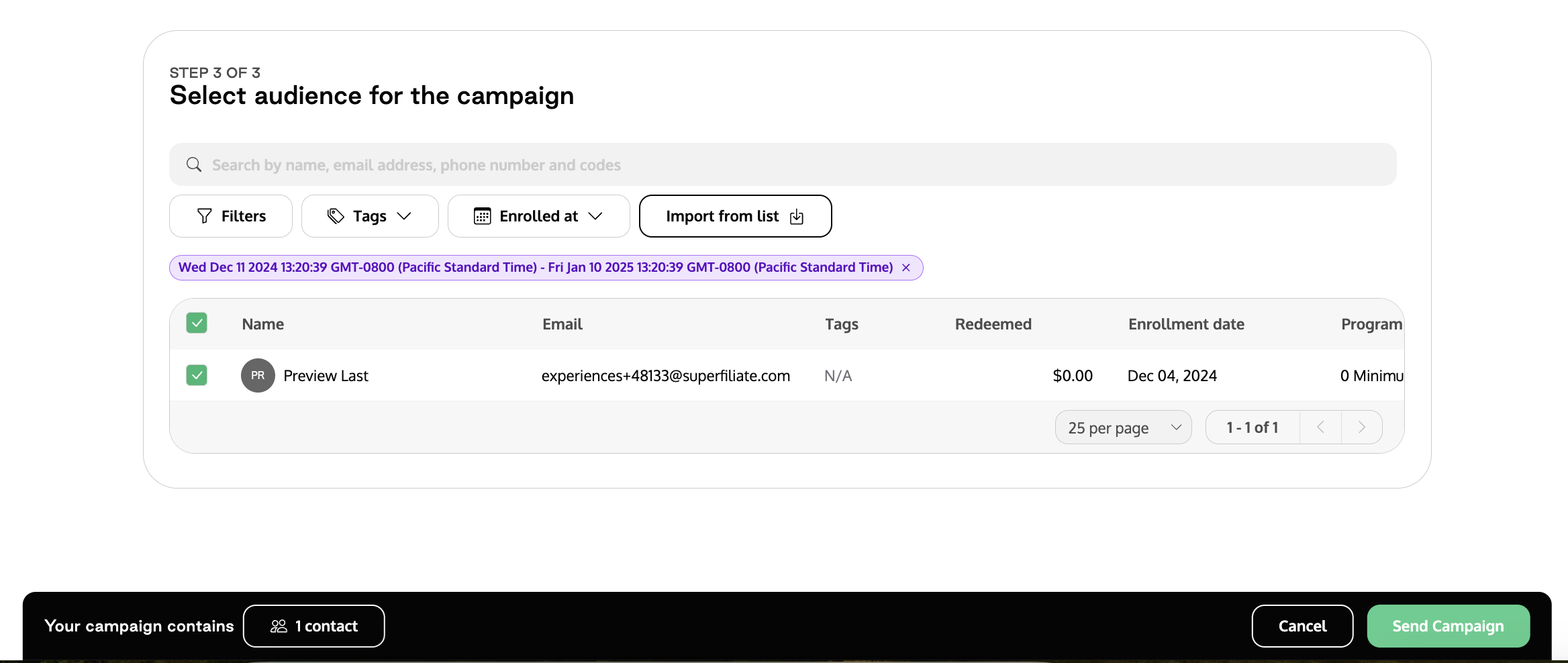
Click the green "Send Campaign" button that appears at the bottom right and choose "Send Now" to start your invite.
A widget will pop up prompting you to choose Email or Download Campaign Data
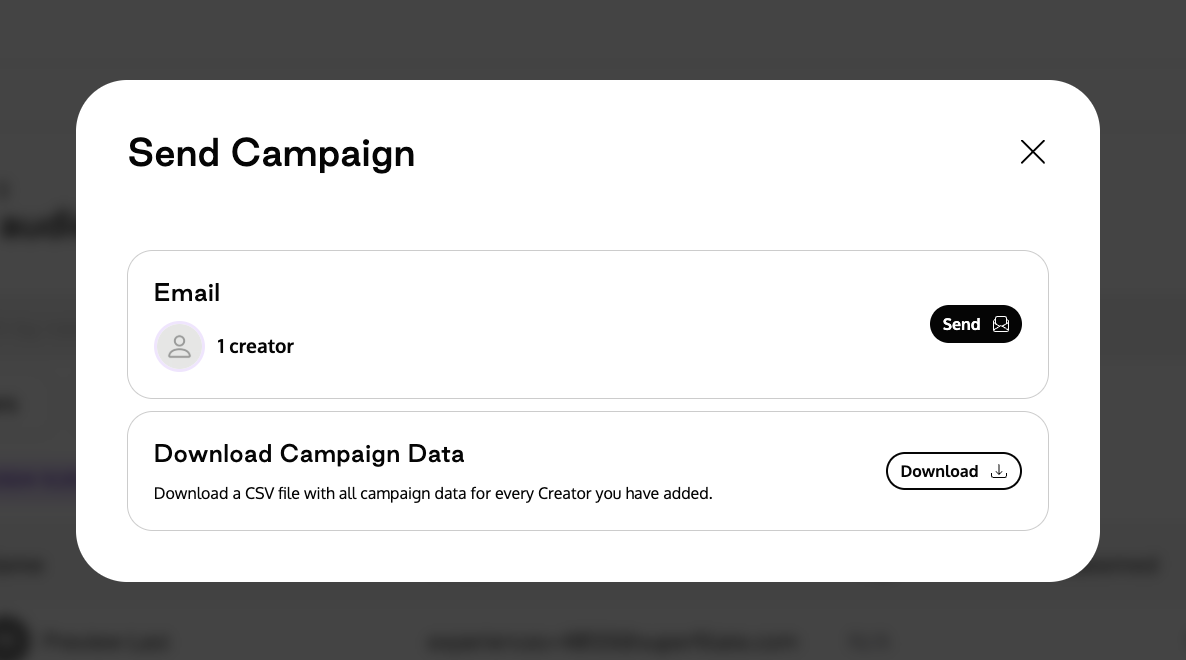
Via Superfiliate's Email Integration
If you'd like to send the invites via Superfiliate's Email integration, click Send next to Email.
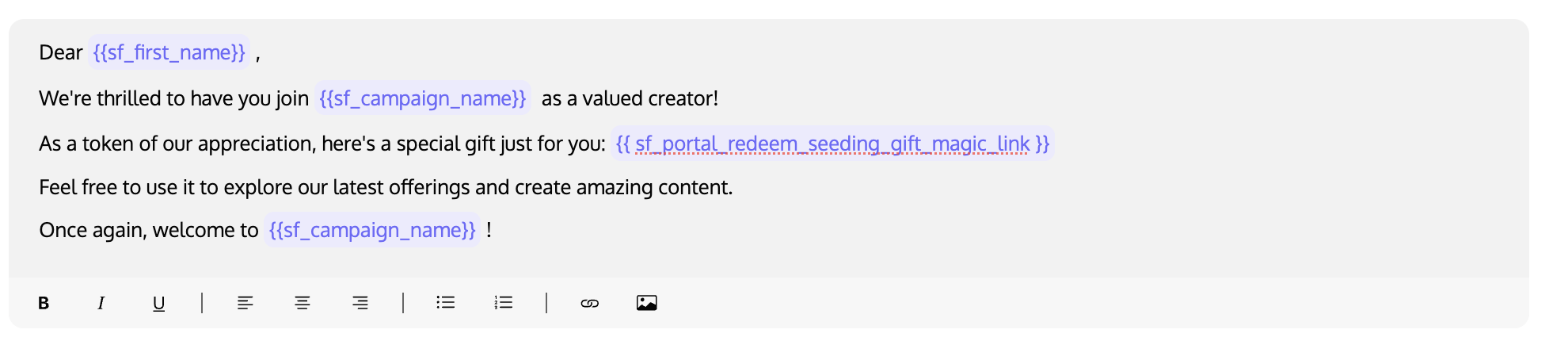
You'll be taken to the Communications section with a pre-drafted email template that contains several dynamic variables for First Name, Program Name, as well as a link to claim their gift via the seeding program.
Do not change the {{ sf_portal_redeem_seeding_gift_magic_link }} variable, as this is what they'll need to access the gift.
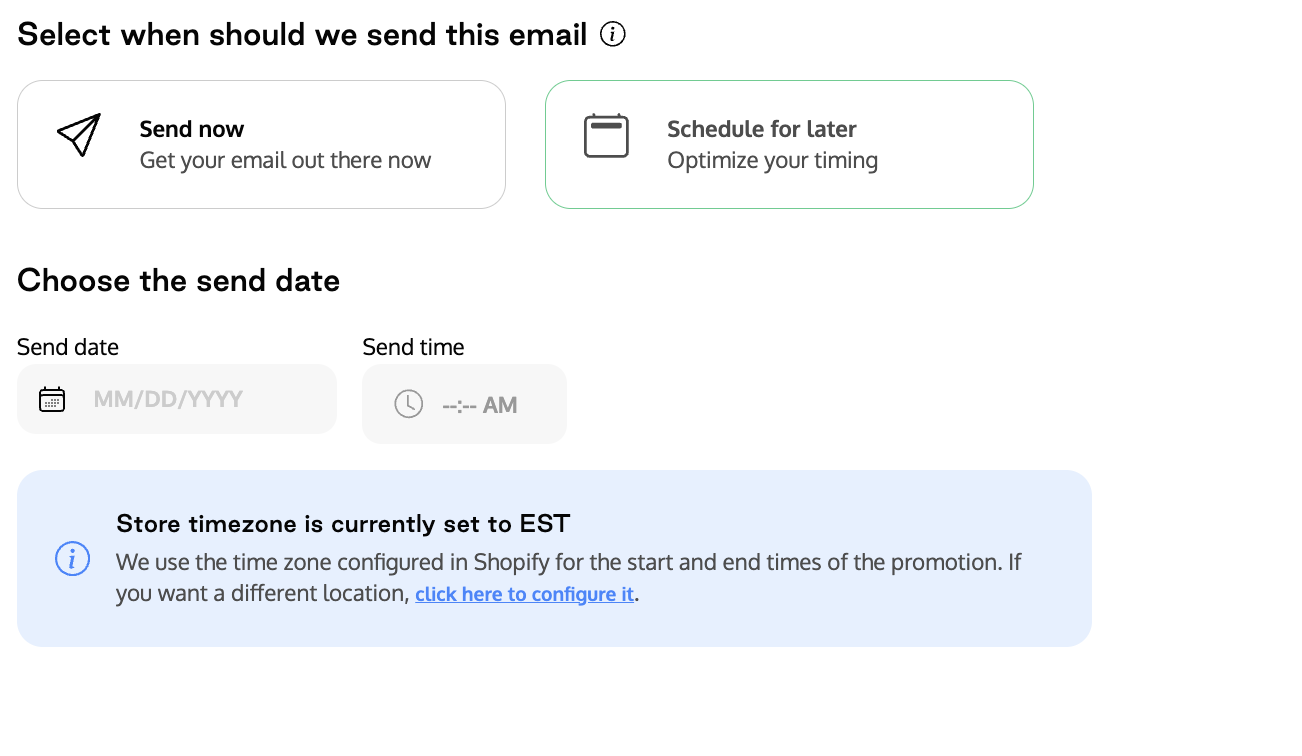
Once you're happy with your email template, click Next in the bottom right, choose whether you'd like the email to Send Now or Schedule for later, and then click Send.
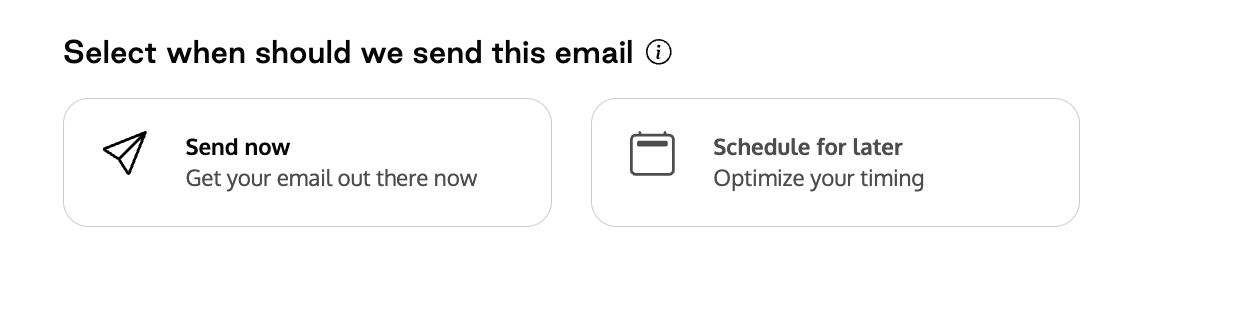
Once you're happy with your email template, click Next in the bottom right, choose whether you'd like the email to Send now or Schedule for later
Via Export
If you'd prefer to share the gifting link another way, you can choose Download Campaign Data, which will prompt you to enter your email address where you'll receive a CSV with three fields:
Superfiliate Name
Superfiliate Email
Redeem URL (the unique gifting link to send the Superfiliate)
Modify Existing Seeding Campaign
If at any point you want to make changes to your Seeding Campaign (add products, Superfiliates, or even Archive the campaign because it's no longer active) you can do so from Program>Gifting>clicking Manage
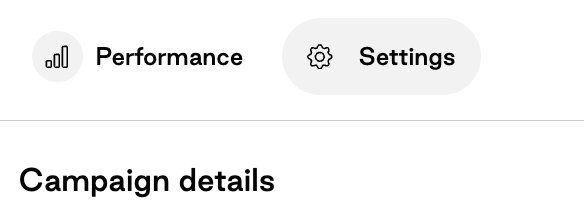
Performance gives you an overview of how many people you've added, how many people have claimed their gift, and how many gifts have been delivered. You can also add more Superfiliates from this view and re-send gift links from this page.
Settings allows you to change campaign details as well as Archive (hide from your main view) the campaign.