Instagram Reels Links
Last updated: August 13, 2026
An Instagram link is a special product link that lets a creator tag a product directly in their Instagram Reels, so viewers can tap the tag and go straight to that exact product to buy it.
It lives alongside the creator's regular Redirect link. Both point to the same destination, but they do different jobs: the Redirect link is a shareable link for anywhere (bio, Stories, DMs), while the Instagram link is purpose-built for product tagging in Reels.
There are two ways to create one:
The creator makes their own in their Superfiliate portal.
You create it for them from their profile.
Either way, the link is built from a specific product page, so every purchase through it is credited to the right creator.
Use this feature when you want to
Tag products directly in Reels so viewers can shop the exact item on screen, no "link in bio" detour.
Send people straight to the product page, shortening the path from watch to purchase.
Keep sales attributed to the creator automatically, wherever the tag drives a purchase.
Feature multiple products by creating one Instagram link per product.
Important behaviors
The Instagram link is separate from the Redirect link, and only generates for product pages: Instagram only lets you tag a real product from the brand's catalog, and each catalog item must point to its own product page. So the Instagram link is built from a specific product URL. Paste a homepage or collection instead, and you'll see "No link created."
Both links share one destination: The Redirect link is for sharing anywhere; the Instagram link is for Reels product tagging.
It works no matter who creates it: A link made on the brand side also appears in the creator's portal, and one the creator makes appears for the brand too.
Product tagging depends on the brand's Instagram Shopping being approved: Even when the link exists, the tag only works if the brand has set up and been approved for Instagram Shopping (see below).
Each link is unique to the creator, so sales through either link are credited to their account.
Step-by-step
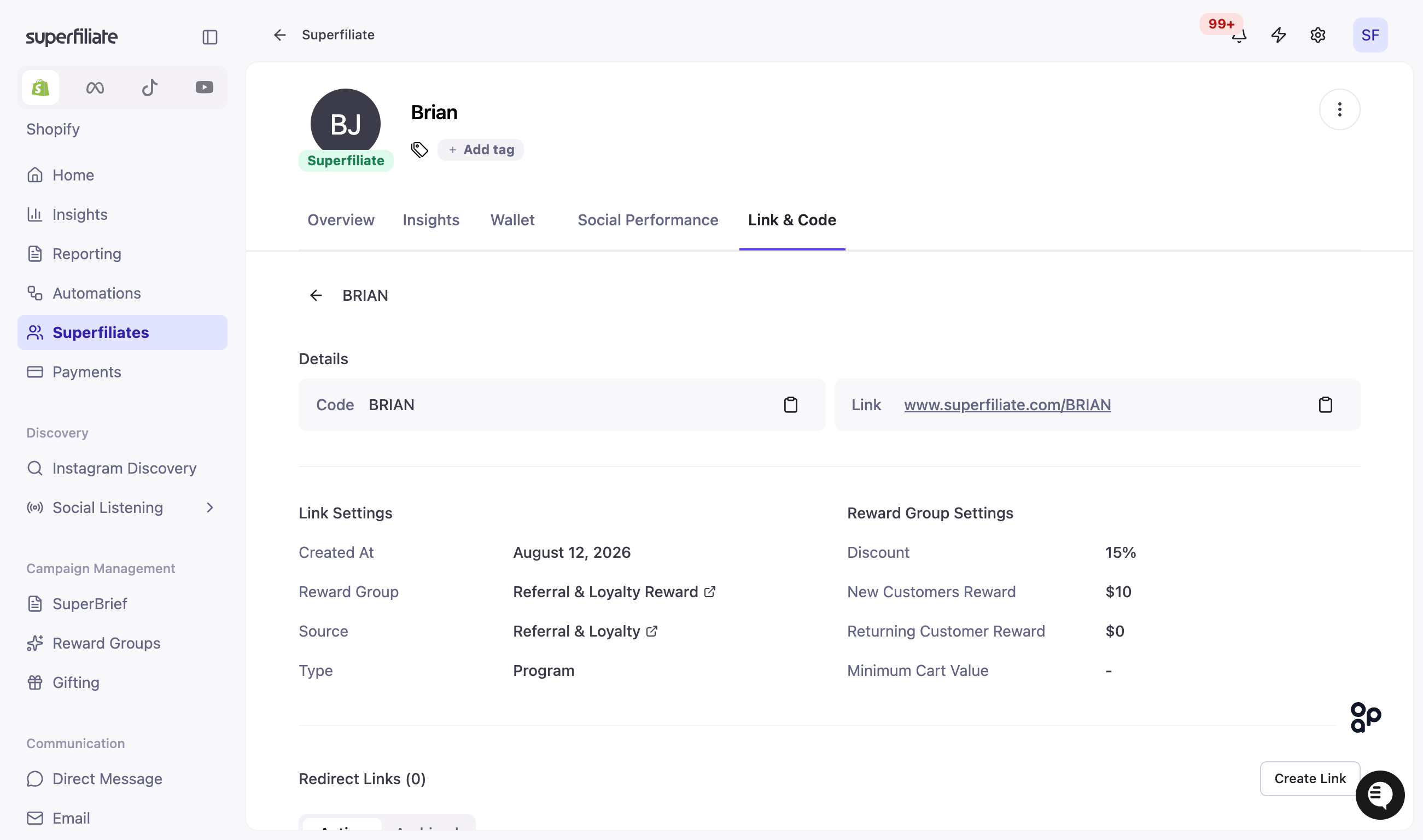
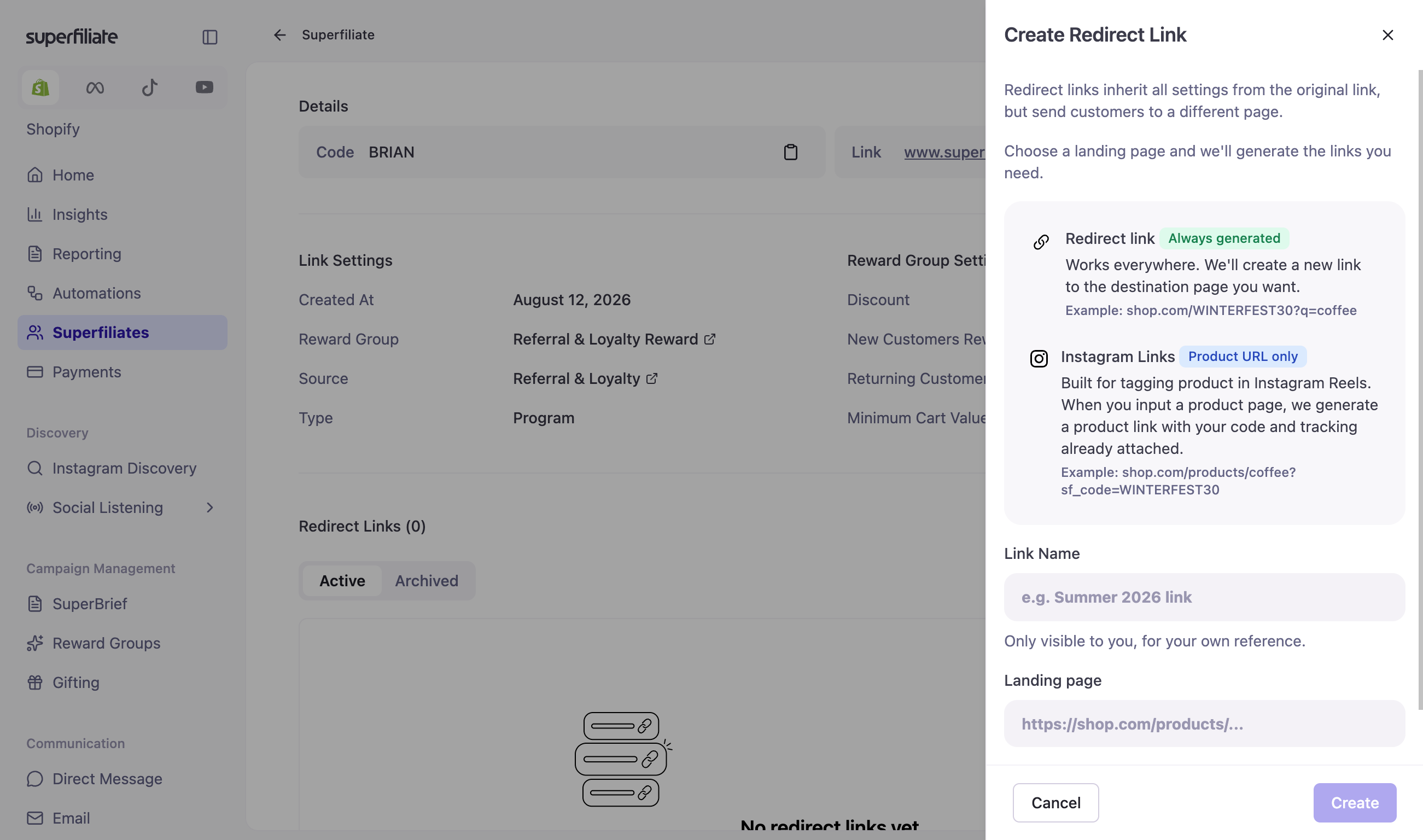
Option A: Create it for a creator (from the brand side)
Go to Superfiliates and open the creator.
Open their Links & Codes page.
Enter the product page URL as the redirect link and generate it.
We automatically create the Instagram link — a product link with the creator's code and tracking already attached. (If the URL isn't a product page, you'll see "No Instagram Reels link was generated because this redirect link doesn't point to a product page.")
Option B: The creator creates their own (in the Portal)
In the Superfiliate portal, open your Links on the Home page.
In the Redirect link field, paste the product page you want to feature, this is the page you'll drive customers to.
Click Generate link.
Your link card appears with both your Redirect link and your Instagram link, ready to copy.
Copy either link with one click, or use the edit (pencil) icon to update it later.
Setting up Instagram Shopping (for brands)
Product tagging relies on Instagram Shopping, which the brand enables in Meta Commerce Manager. If an Instagram link isn't tagging as expected, this usually isn't fully set up yet. The brand's steps:
Use a professional/business Instagram account connected to a Facebook Page they manage.
Sell physical goods that comply with Meta's Commerce and merchant policies (digital goods and services don't qualify).
Verify their website domain in Meta Business settings.
Create a product catalog in Meta Commerce Manager — added manually, in bulk, or synced from their store platform (e.g. Shopify).
Submit for review and get approved against Meta's Commerce Eligibility Requirements.
Set product-tagging permissions so approved creators can tag their products.
A couple of Meta rules worth knowing:
Every catalog product link must lead to that specific product's page on the verified domain, starting with
http://orhttps://.You can tag up to 5 products in a feed post or Reel (up to 20 across a carousel).
Instagram Shopping information: