Superfiliate Reporting
Last updated: December 26, 2024
Home
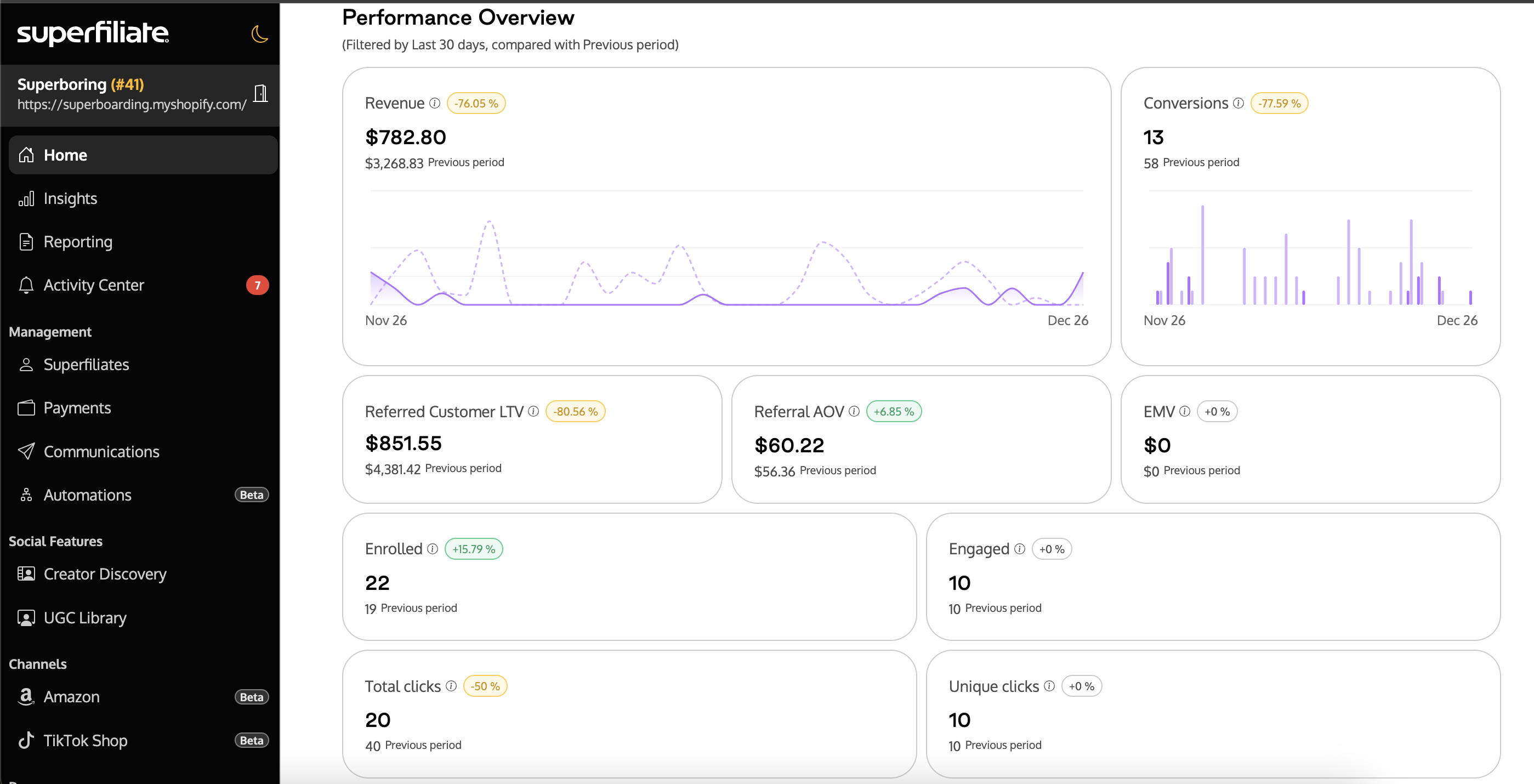
The homepage of Superfiliate provides three different tabs designed to give you a quick visual overview of your programs' overall health, top performers, and recent activity.
Program Overview
You can filter this view by Program, as well as adjust the date range and compare it to a previous timeframe using the filters on the upper right.
Hover over the "i" next to specific metrics to see the full definition and click to see the specific metric displayed over time and apply additional filters/information
Performance Overview has a chart showing Revenue over the filtered timeframe and several high level metric totals
Top Performers ranked by revenue, click to view their profile
Program Overview includes the current status of Wallet Balance (oustanding vs redeemed vs expired), Conversions (rejected, approved, total revenue) and Product Gifts (unlocked vs claimed). You can click in to view more details of cashback vs referral
Social Analytics
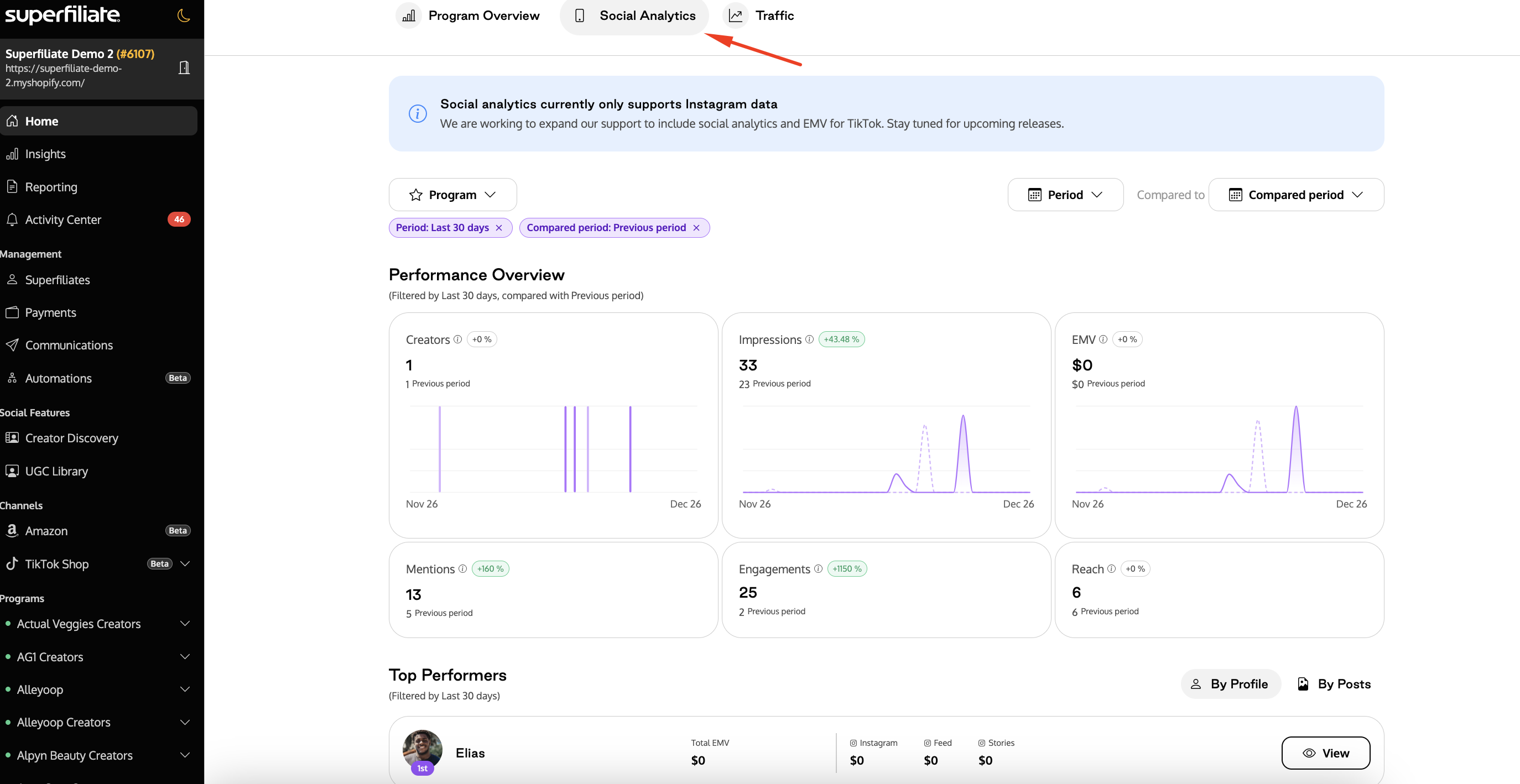
This section currently contains information from Instagram only and requires that you've connected your brand's Instagram within Integrations>Social.
Filter by Program and date, with the option to compare two timeframes
Hover over the "i" next to specific metrics to see the full definition and click to see the specific metric displayed over time and apply additional filters/information
You can view high level information such as the total number of creators who mentioned you in at least one piece of content, as well as Top Performers by creator or piece of content
Traffic
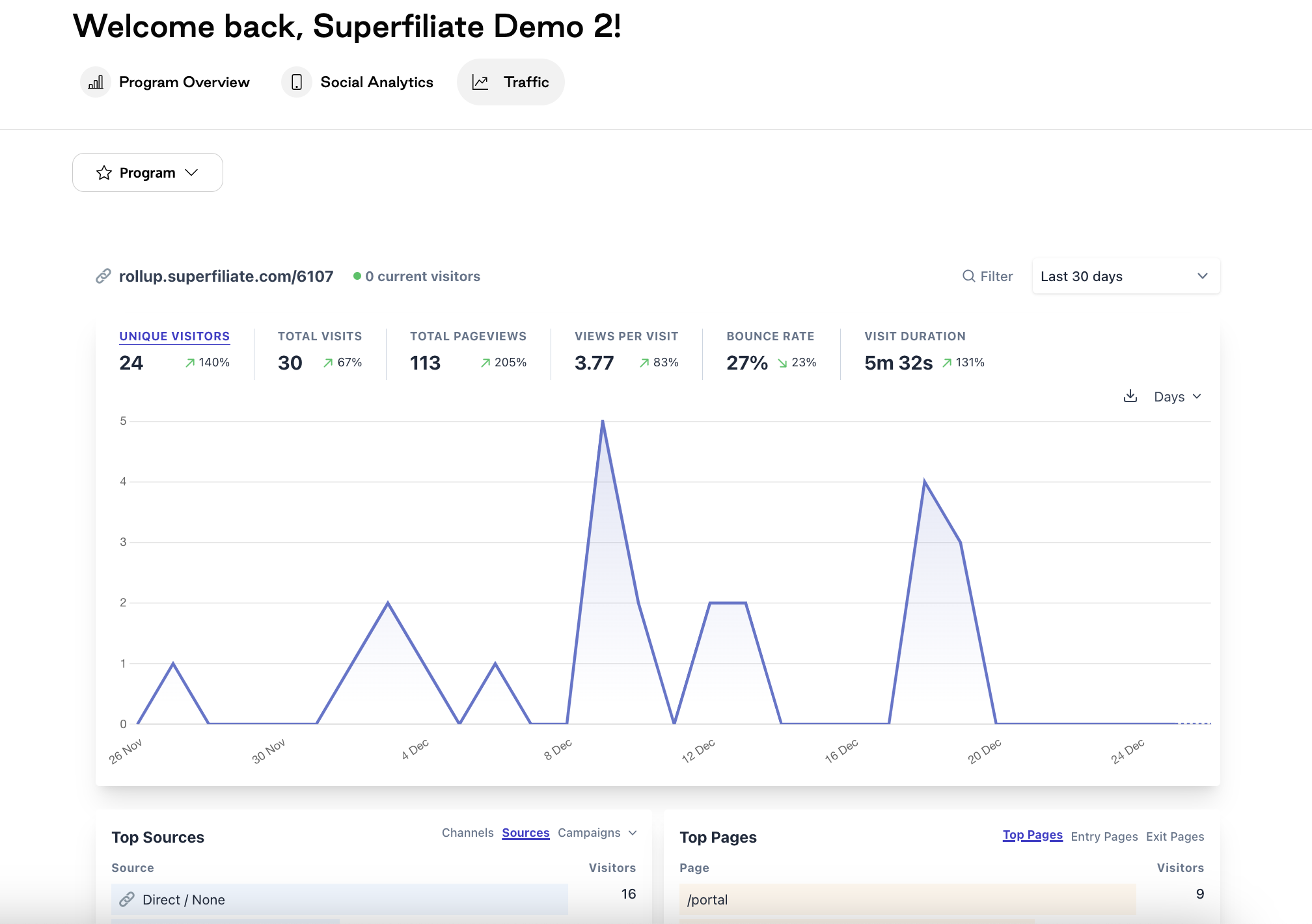
This shows you a breakdown of web traffic related to Superfiliate managed pages, including the Cobranded Landing Pages
Information can be filtered by Program, date and specific affiliate
You can view standard traffic information including Referral Sources/Channels/Campaigns, Top Pages, Devices/Browsers etc. and Locations
This gives you an understanding of how Superfiliates are engaging with the portal, as well as how shoppers are engaging with the Cobranded Landing Pages, beyond just conversions (Visit Duration and Unique Visitors are great health checks, for example)
Insights
The insights section is somewhat like a snapshot of the three Homepage sections condensed into one, with sections showing high level Revenue, Program Growth, Social Performance, Landing Page Traffic and Top Creators.
You can filter by Program and date range, as well as compare to previous time periods
Reporting
Every account comes with two reports created by default, Conversions and Superfiliates
You have the option to "Create Custom Report" in the upper right, as well as click into one of the pre-existing reports to apply filters, adjust columns, export data or save your changes as a custom report
Conversion Reports
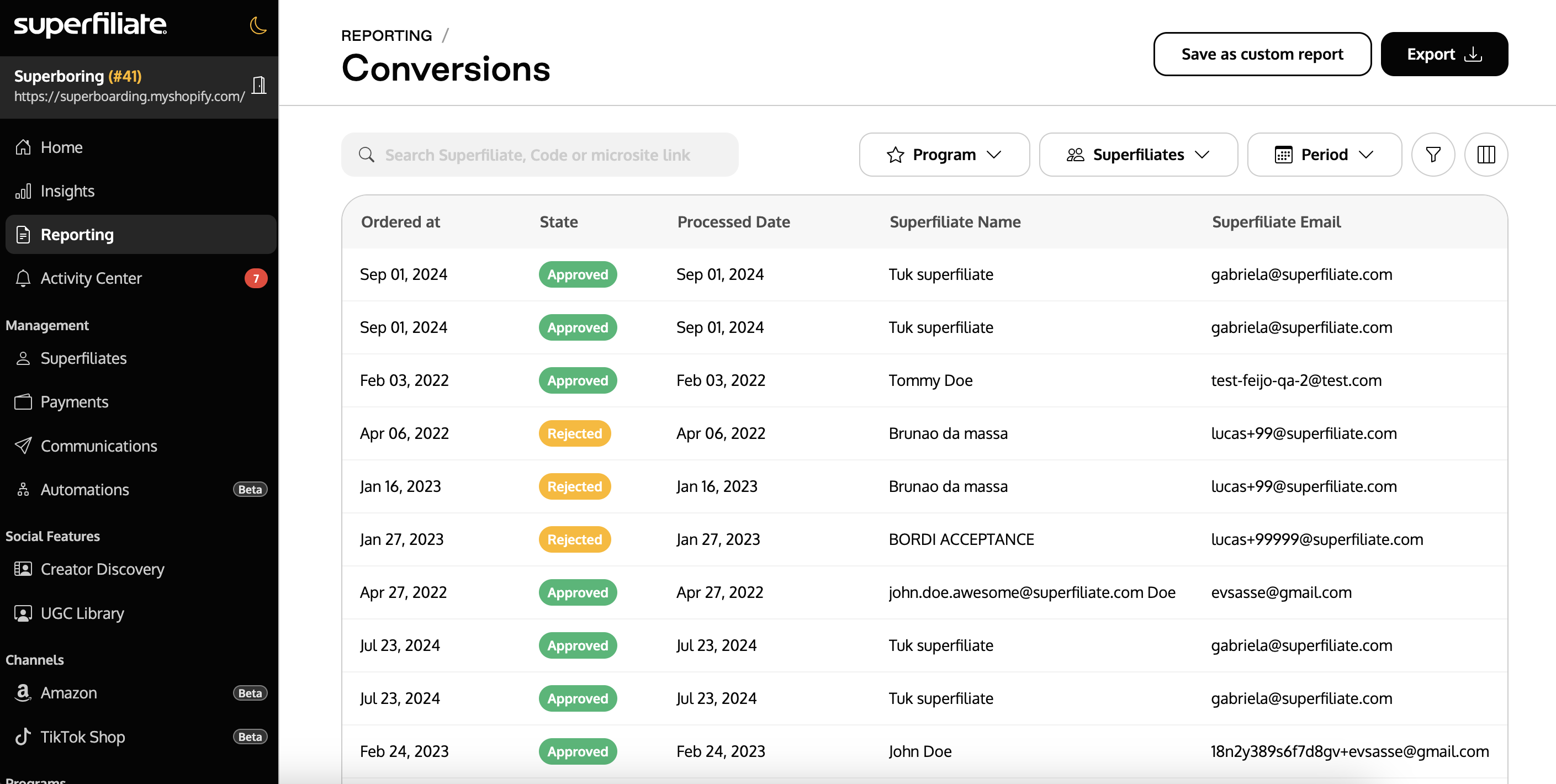
Conversion reports are displayed as one transaction per row (order or referral) and can be adjusted in several ways to meet your needs.
You can search by Superfiliate Name, Code or Microsite Link
Filter by Program, Superfiliate, Time Period, Conversion Total, State, Rejection Reason, Superfiliate Email, Code, Link, Referred Customer, Referred Customer Email, Program Type, Shopify Order Number, Commission, Discount and Promotion Title
You can include additional qualifiers such as: is/is not, is empty/is not empty, contains/does not contain, starts with/ends with, is greater than/less than, is greater than or equal to/is less than or equal to etc.
Filters can be stacked
You can adjust the columns displayed to include fields such as commission, product list, discount and so on
Many columns are also sortable (click to sort high to low/low to high)
Note: State refers to the state of the conversion, whether it was approved, rejected or is currently pending
Learn more about building an order report here
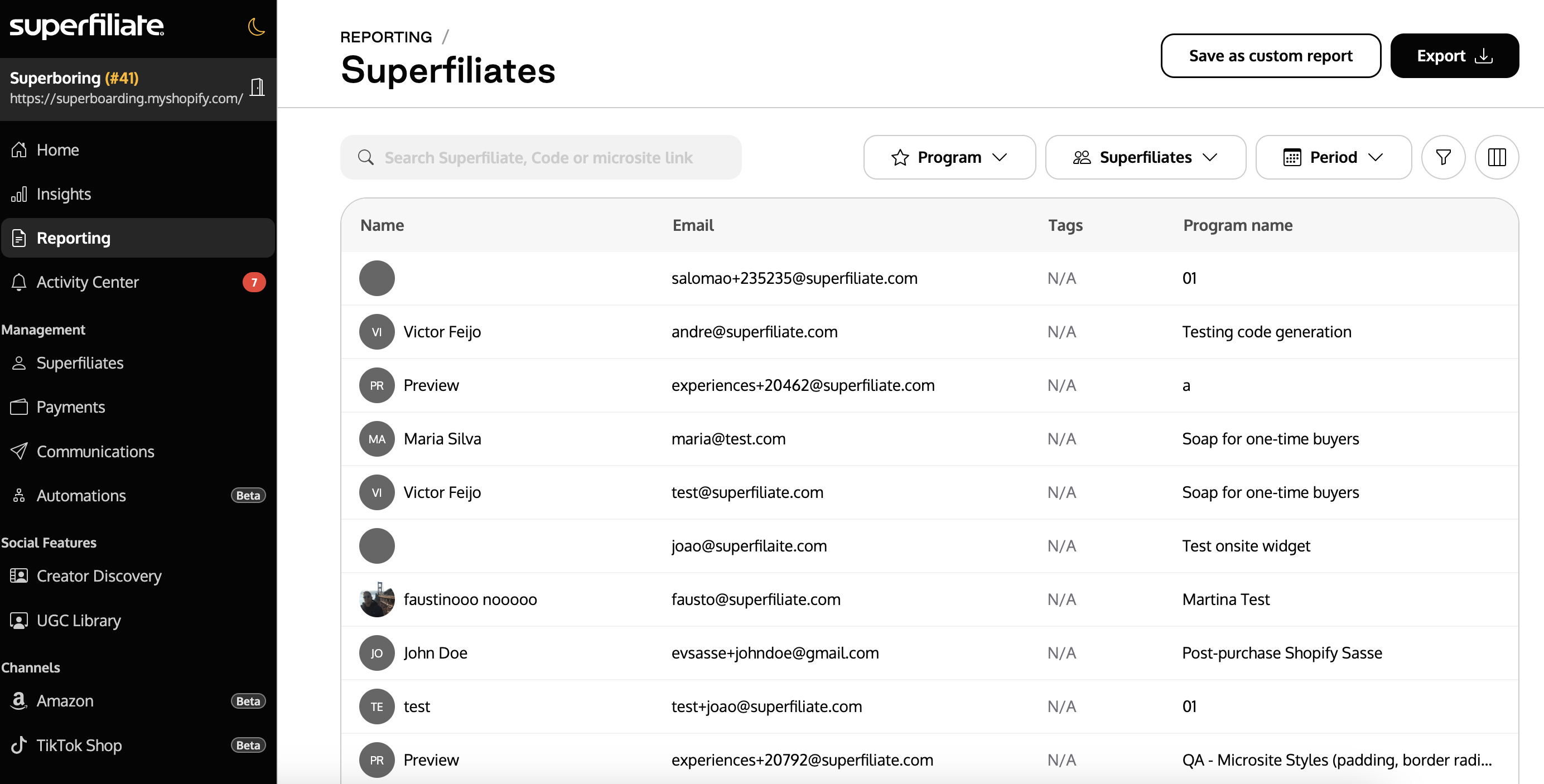
Superfiliate Reports
You can search by Superfiliate Name, Code or Microsite Link
Filter by Program, Superfiliate, Period, Approved Referrals, Cashback Expired, Cashback Redeemed, Cashback in Wallet, Claimed Gifts, Email, Instagram Followers, LTV, Link, Locked Gifts, Orders, Phone Number, Program Name, Program Type, RCLV Total Sum, Redeemed, Redirect URL, Referral Revenue, Referral Code, Rejected Referrals, State, Superfiliate, Total Clicks, Unique Clicks, Unlocked Gifts, Wallet Balance
You can include additional qualifiers such as: is/is not, is empty/is not empty, contains/does not contain, starts with/ends with, is greater than/less than, is greater than or equal to/is less than or equal to etc.
Filters can be stacked
You can adjust the columns displayed to include fields such as the Superfiliate's Avatar, Enrollment Date, Approved Referrals, Tags, Social handles/Followers etc.
Many columns are also sortable (click to sort high to low/low to high) such as Enrollment Date, Referral Revenue etc.
RCLV: Referred Customer Lifetime Value, only applicable if the first purchase was made through a referral via one of your Superfiliates
State: Status of Superfiliate in Program (e.g. Enrolled)
Saving a Report
Once you're happy with the filters and columns of your custom reports, you can "Save as custom report" and assign an easy to remember name. Your report will be available for you to reference moving forward so all you'll need to do is go into Reporting, click into your saved report and adjust the date ranges when running your regular analysis
Exporting a Report
You can export a report from the Reporting overview (hover over the name of the report you want to export and click "Export"). You can also click "Export" within an individual report.
You will be prompted to enter the email address where a zipped report will be sent.
Reports will be sent from team@superfiliate.com
TikTok Shop Reporting
Within the TikTok Shop section of Superfiliate, you have several reporting options related to your collaborations. To learn more about TikTok Shop specific reporting, click here.