Advanced Automation Editing
Last updated: April 24, 2026
Automations aren't something you build once and leave alone, real-world flows evolve. You add a new email action, rethink the order of your welcome sequence, or realize you want a copy of an existing step with slightly different copy. Advanced editing gives you three powerful tools for changing an automation without tearing it apart:
Insert a step between two existing steps
Duplicate a step you've already configured
Drag and drop to reorder steps anywhere in the flow
Everything below works on both drafts and live automations.
Insert a step between existing steps
Need to slot a new step into the middle of your flow? You no longer have to add it at the end and rebuild.
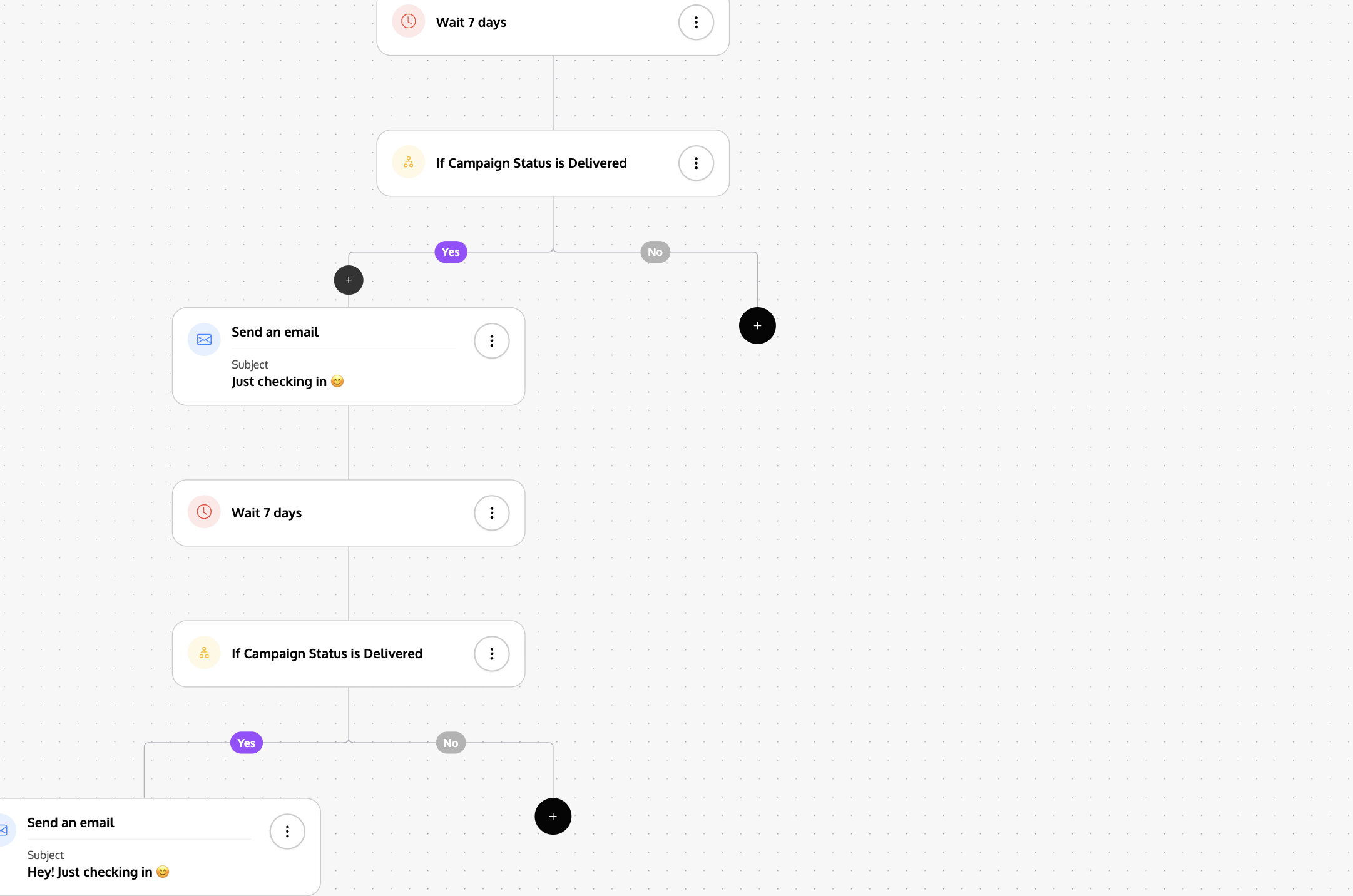
How to insert:
Hover over the connector line (edge) between any two steps in the flow.
An Insert step button appears on that edge.
Click it to open the step picker.
Pick the step you want: it slots in between the two surrounding steps, and the flow reconnects automatically.
You can insert on any edge, including the branches of a Conditional Split or A/B Test, so you can add a delay, extra email, or conditional check anywhere along the path.
Duplicate a step
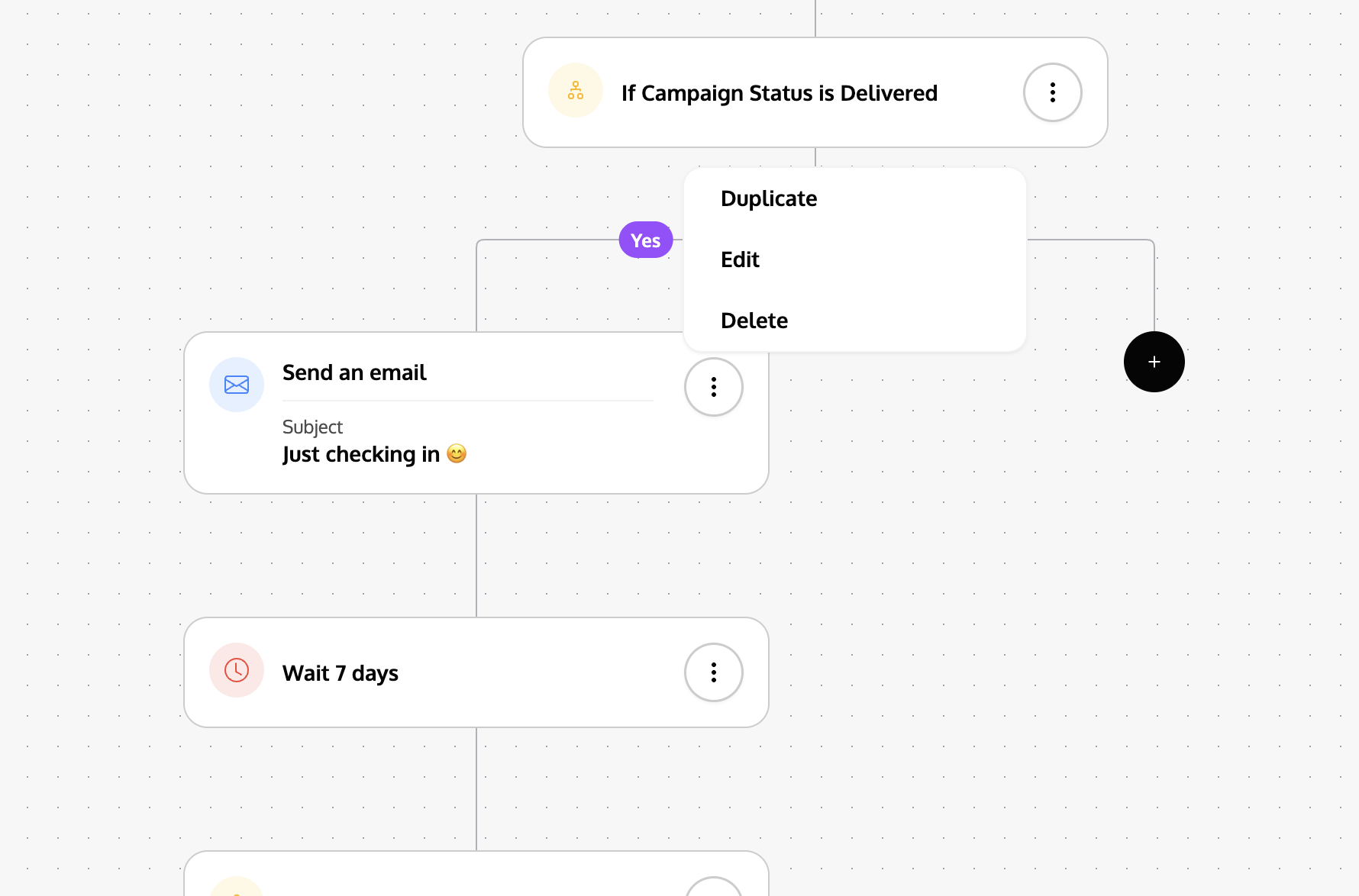
When you have a step configured exactly the way you want and need "almost the same thing" somewhere else, duplicate it instead of rebuilding.
How to duplicate:
Open the ⋯ menu in the top-right of any step card.
Click Duplicate.
What gets copied:
All the step's configuration: message copy, filters, delay values, tags, metric settings, and so on.
The duplicate is an independent copy: editing it won't change the original.
Where it lands:
The duplicated step appears immediately after the original in the flow. Your downstream steps stay connected, they just now sit after the duplicate. From there you can drag it to its final home (see below) or edit it in place.
A note on what you can't duplicate:
Conditional Split and A/B Test steps can't be duplicated directly. Because branching steps own the logic for multiple downstream paths, duplicating them would create ambiguous flows. Rebuild branching structures manually or duplicate the leaf steps inside each branch and assemble.
Empty placeholder steps (ones you haven't configured yet) also can't be duplicated. Finish configuring the step first.
Drag and drop to reorder
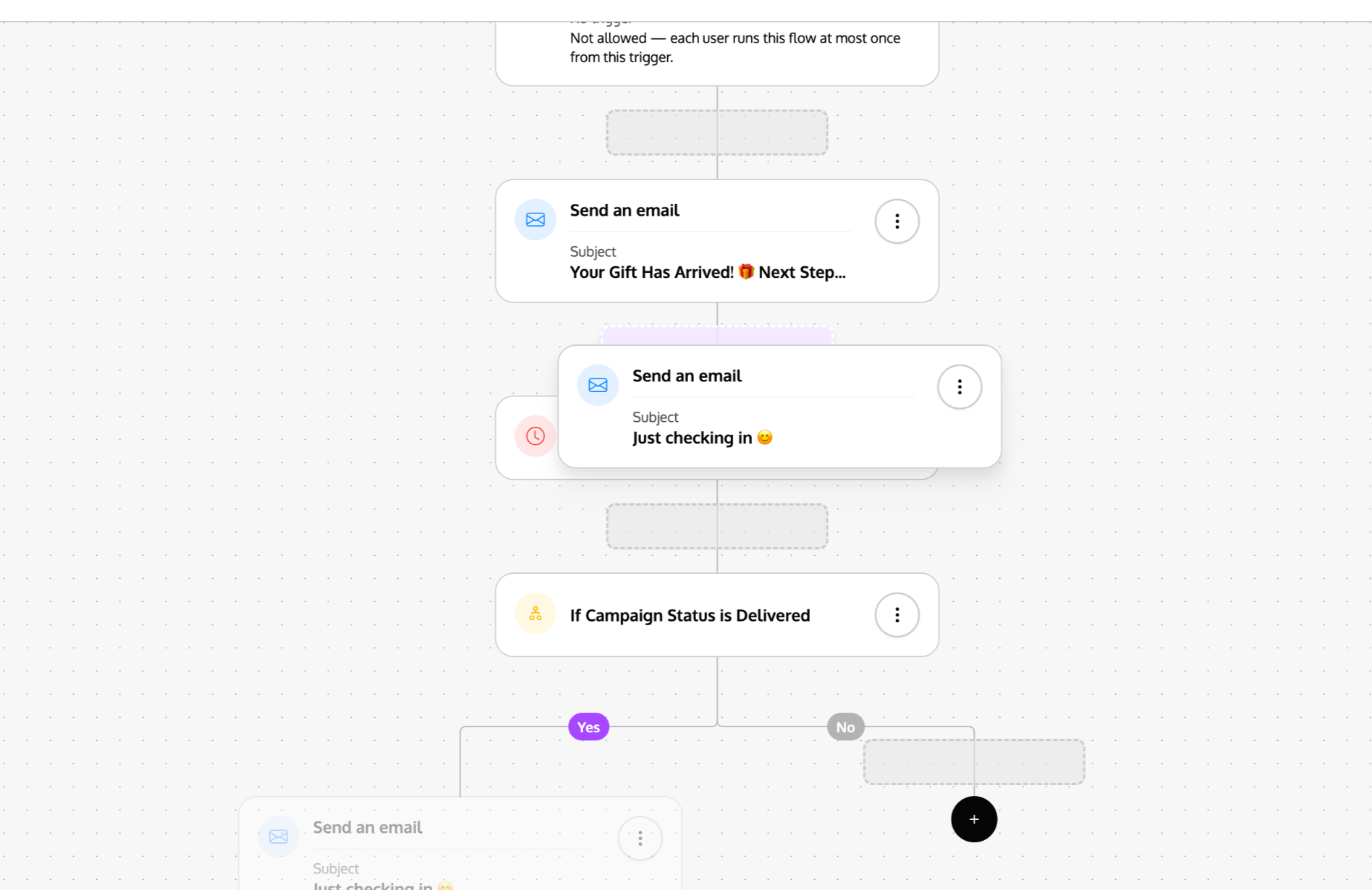
For larger changes, moving a step from one branch to another, or reordering a chunk of your flow, drag and drop is the fastest way.
How to reorder:
Click and hold any step card.
Drag it toward a new location.
Drop it on the edge (connector line) where you want it inserted.
What moves with the dragged step:
If you drag a single linear step (e.g., Send Email, Time Delay), only that step moves.
If you drag a branching step (Conditional Split, A/B Test), the entire subtree, the branching step plus everything below it on all of its branches, moves together. This keeps your branch logic intact.
Visual feedback while dragging:
The step (and its subtree, if branching) dims so you can see where it used to sit.
A ghost preview of the step follows your cursor.
Edges near your cursor highlight when they're valid drop targets, you'll see a dashed outline on the target edge, which turns purple when it's the closest valid drop.
Where you can and can't drop:
You can drop a step on any valid edge in the flow.
You can't drop a step into its own subtree, you'd create a loop. The drop zone won't highlight for these edges.
You can't drop a branching step as a simple linear child in some positions, if the placement would break the conditional structure, the drop is rejected.
If a drop isn't landing where you expect, drag closer to the edge until it highlights purple, that's the "locked in" state meaning the drop is valid.
Tips
Use Insert for precision, Duplicate for speed, Drag for restructuring. Each tool has a sweet spot. Insert is fastest when you know exactly where the new step goes. Duplicate saves retyping when you have a step you like. Drag is best for bigger layout changes.
Save frequently while restructuring. Advanced edits can meaningfully change the shape of your automation, double-check the resulting flow before publishing.
Branching steps are powerful but rigid. If you're reshaping a flow with Conditional Splits or A/B Tests, consider duplicating the leaf steps first, then restructuring the branching logic manually. This avoids the duplicate-branch and drop-into-subtree restrictions.
Live automations are safe to edit. Changes apply to future runs. Creators who already passed through a step won't re-enter it just because you edited it. See [Manage Your Live Automation](#) for the full rules.