How to Create Secondary Links for Affiliates
Last updated: October 15, 2026
Secondary Links let you give the same affiliate more than one tracking link. Use them when an affiliate wants to promote different products, collections, campaigns, or landing pages while still earning commission under the same account.
Once enabled, both you and the affiliate can create and manage these additional links.
Enable Secondary Links in your program
Secondary Links are turned on per program. You can enable them when creating a program (the Enable multiple links creation by your Superfiliates option in the Experiences step) or later from the program's settings:
Open the Program you want to edit.
Go to Settings.
Find the Secondary Links setting.
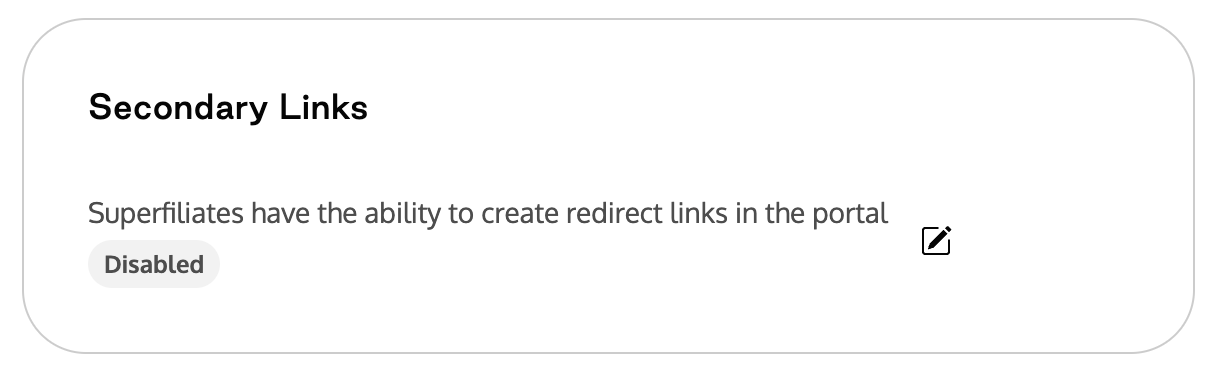
Turn on Enable Secondary Links.
Save your changes.
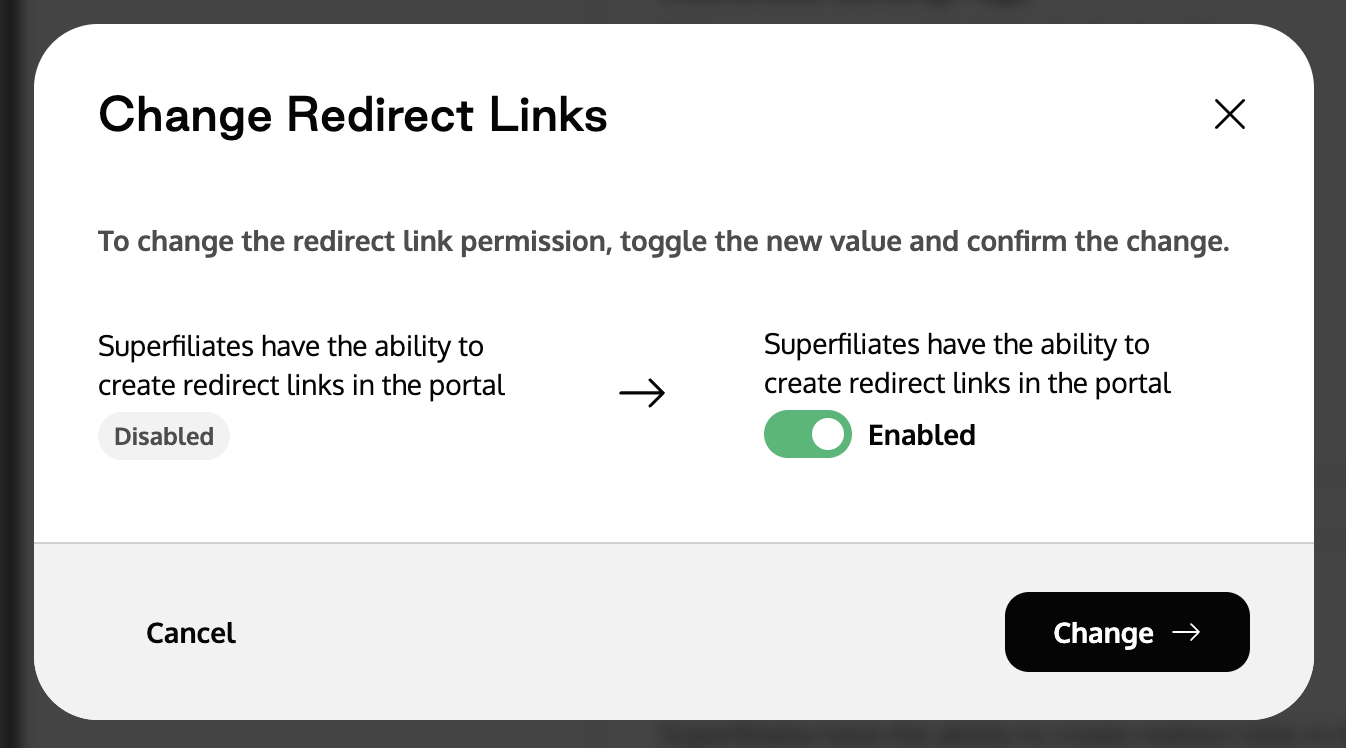
Once enabled, Secondary Links are available for every affiliate in that program.
Create a Secondary Link as a brand
You can create Secondary Links directly from the affiliate's profile:
Open the affiliate's profile.
Scroll to the Secondary Links section.
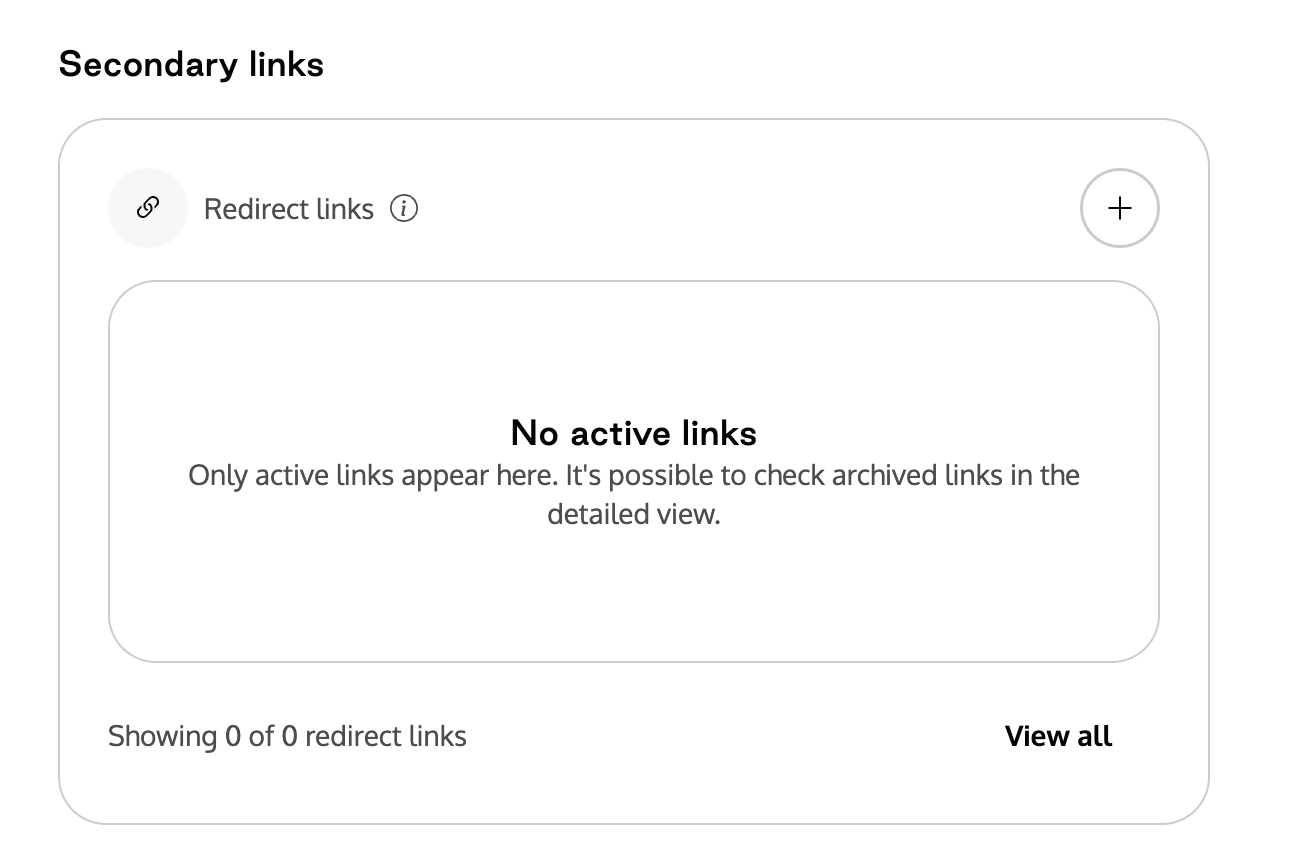
Click + to add a link.
Enter the destination URL you want the affiliate to promote.
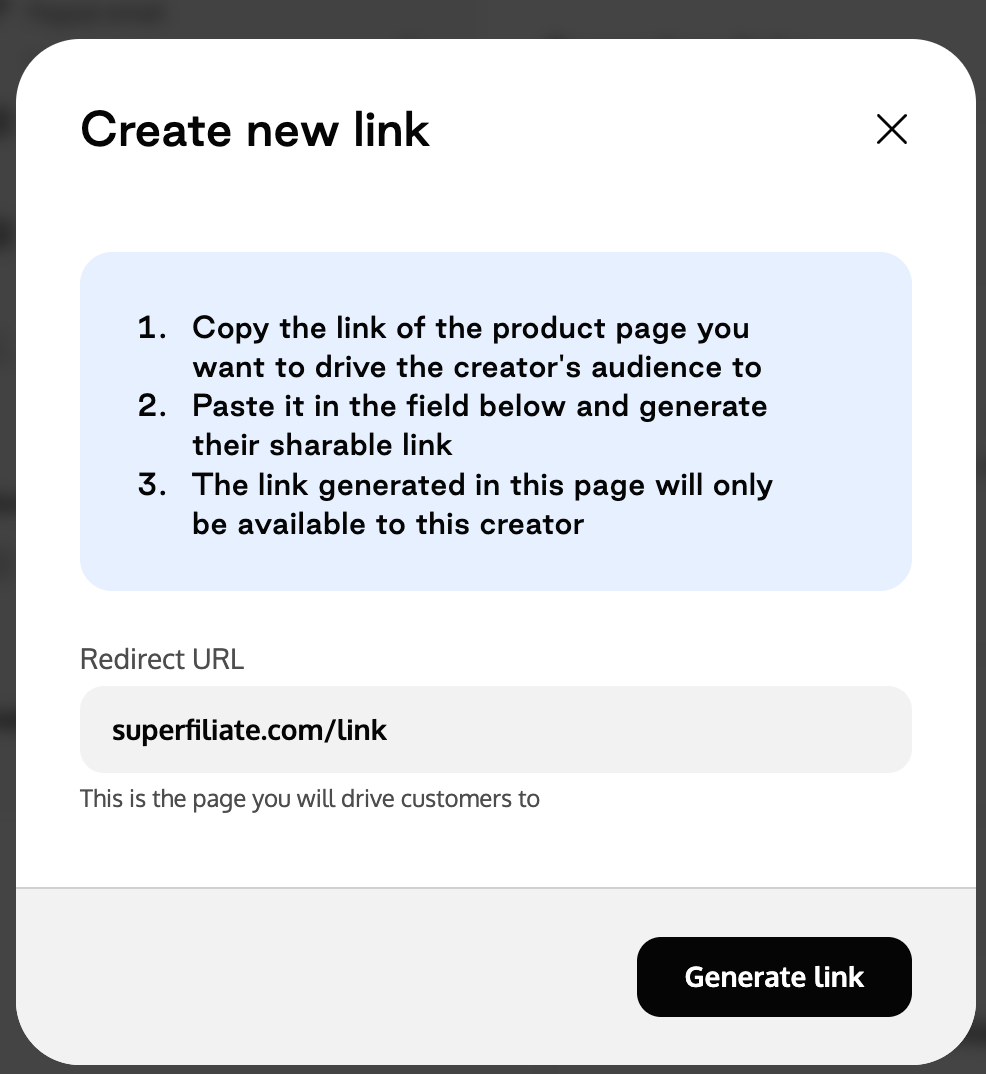
Generate the link.
The new Secondary Link is immediately available for tracking and reporting.
Secondary Links created by affiliates
Affiliates can also create their own Secondary Links from the Links & Codes area of their portal, without needing help from your team.
Related articles
Choose where your creator links send shoppers (controls the destination of the affiliate's main link)